1. App Installation
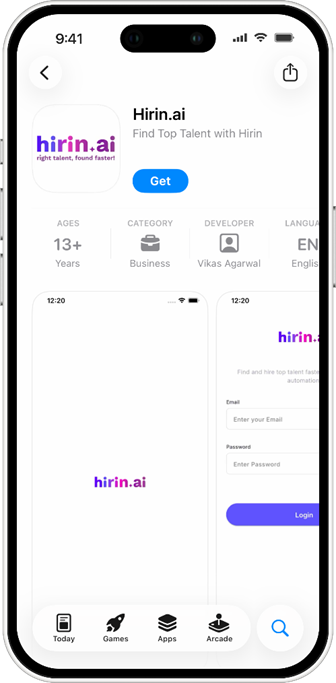
- Open Google Play Store / App Store
- Search Hirin.ai
- Tap Install and open the app
2. Login Screen
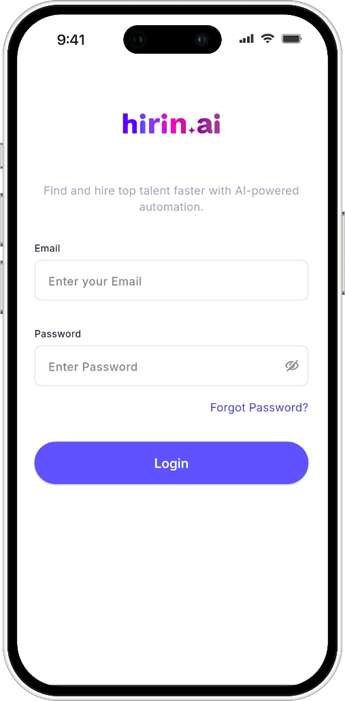
- Open the app
- Enter Email and Password
- Tap Login
3. To-Do List Overview
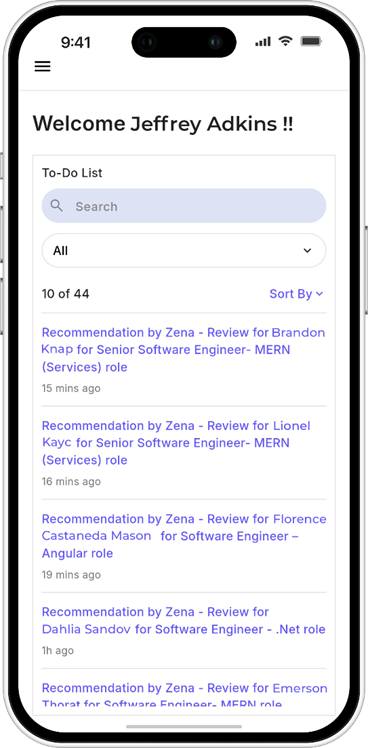
- View all recruiter tasks in one place
- Each task shows: type, candidate name, job role, and time
- Click Recommendationto view:
- Candidate summary, resume, job details
- Strengths & weaknesses
- CV score, skill match, WhatsApp screening & chat logs
- Options: Proceed / Reject
- Track candidate workflow with timestamps
- Access notes and detailed resume
4. Using the Filters
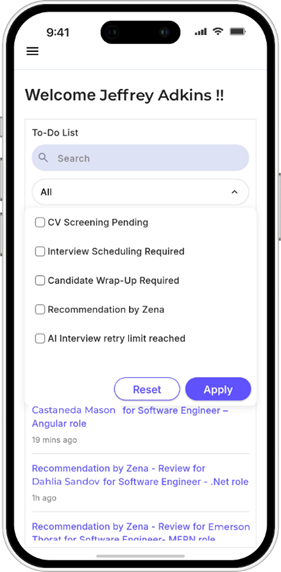
- Tap All to open filters
- Select categories (e.g., CV Screening, Interview Scheduling, Zena Recommendations)
- Tap Apply or Reset
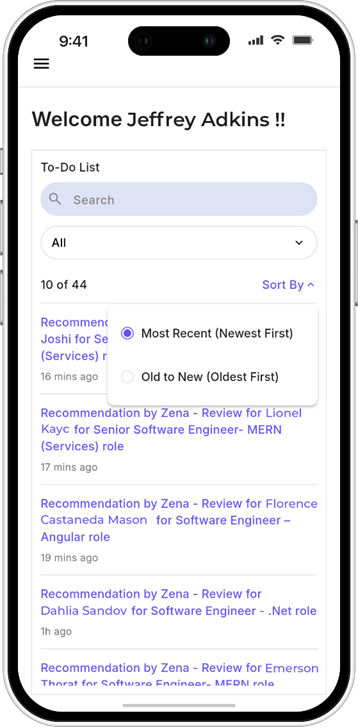
5. Sorting To-Do Items
- Tap Sort By
- Choose:
- Most Recent
- Old to New
6. Navigating the Side Menu
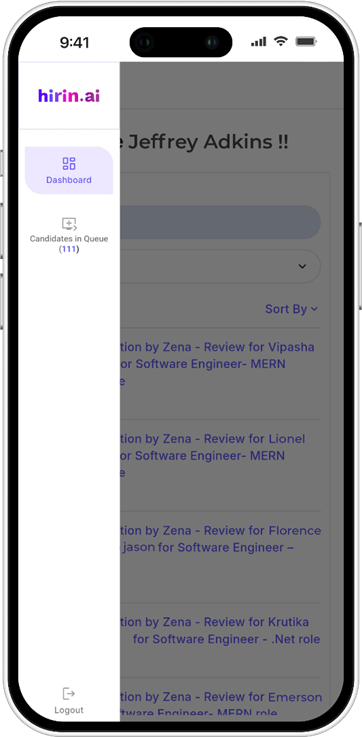
- Tap ☰ to open menu
- Access:
- Dashboard – Overview of tasks & activity
- Candidates in Queue – Manage candidate profiles
7. Candidate Queue & Profile Management
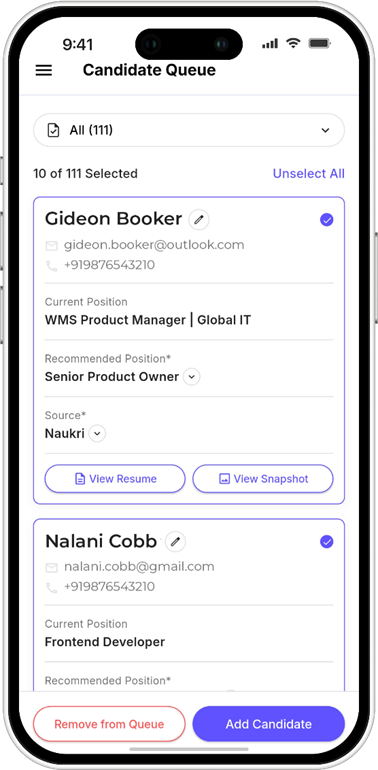
- View all candidates in queue
- Select multiple profiles for bulk actions
Candidate Details:
- Name, contact (masked), current & recommended role, source
Actions:
- View Resume / Snapshot
- Remove from queue
- Add candidate
Was this article helpful?
That’s Great!
Thank you for your feedback
Sorry! We couldn't be helpful
Thank you for your feedback
Feedback sent
We appreciate your effort and will try to fix the article