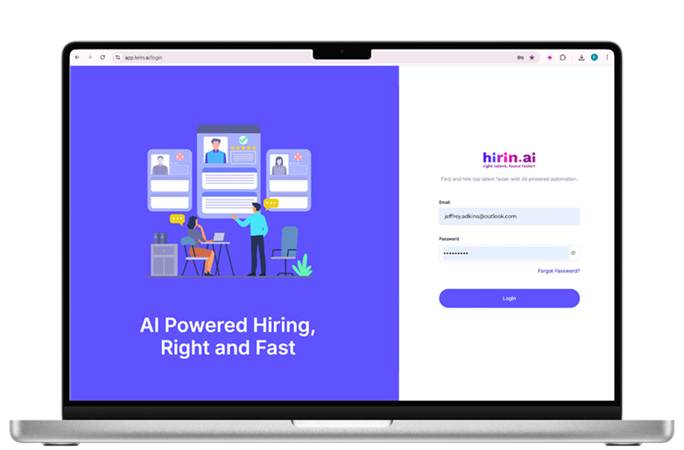
- Login to your hirin.ai account with Admin credentials.
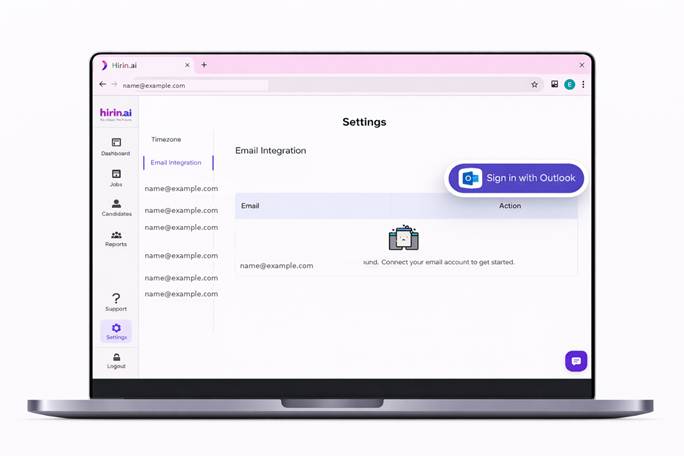
- Navigate to the Settings option which is available to the left side of page.
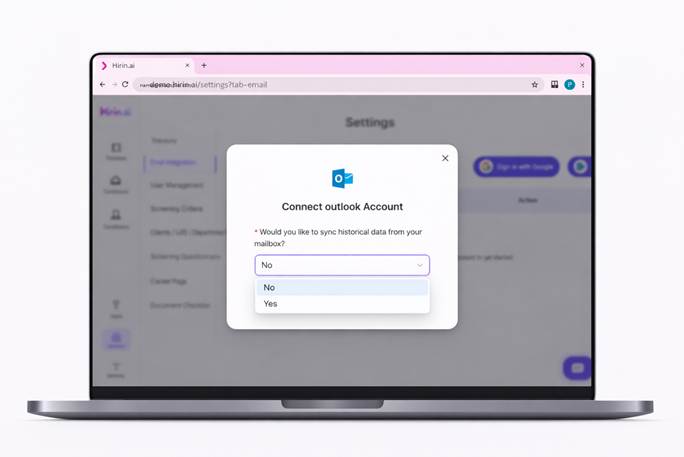
Option A: Select “No”
- If you don’t want to import your past emails:
- Simply select "No" from the dropdown.
- Click “Connect”.
- Proceed to sign in securely with your Outlook account.
- Only new incoming emails will be synced moving forward.
- Use this if you're starting fresh or only need future email activity.
Option B: Select “Yes”
- If you want to import past emails:
- Select "Yes" from the dropdown.
- A new field labelled “From Date” will appear.
- Choose the starting date from which you'd like to import past emails.
- Click “Connect” to proceed to Outlook sign-in and grant access.
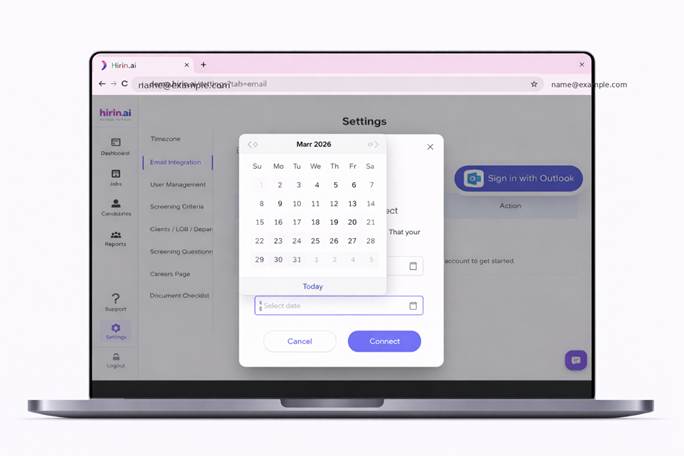
Figure 4: Option B: Select “Yes”
- Enter your Outlook email ID and click Next and complete the sign-in process.
- Once signed in, your Outlook account will be connected automatically.
- You will be redirected to the Hirin dashboard.
- Your email will appear under Email Integration.
- This confirms your Outlook ID has been successfully connected.
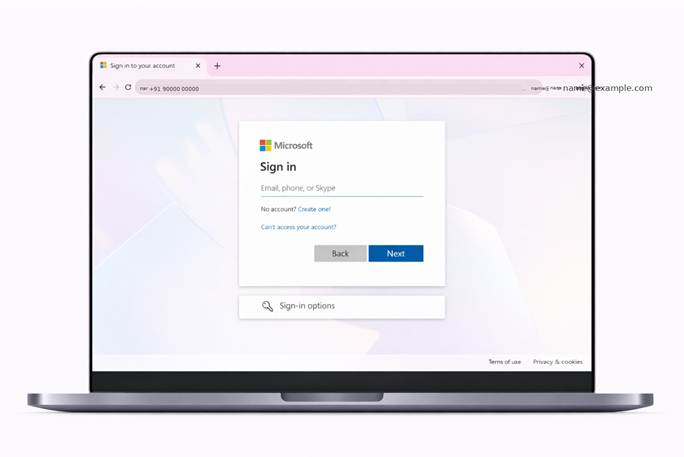
Figure 5: Option B: Select “Yes”
Was this article helpful?
That’s Great!
Thank you for your feedback
Sorry! We couldn't be helpful
Thank you for your feedback
Feedback sent
We appreciate your effort and will try to fix the article