Step-by-Step Process
Step 1: Open the invitation email and set your password
- Open the invitation email from info@hirin.ai in your inbox.
- Click the Set Password (or Accept Invite) button inside the email.
- You are redirected to the Set Password screen.
- Enter a password that meets all the rules shown on screen: minimum 8 characters, at least one uppercase letter, one lowercase letter, one number, and one special character.
- Re-enter the same password in the Confirm Password field and click Set Password.
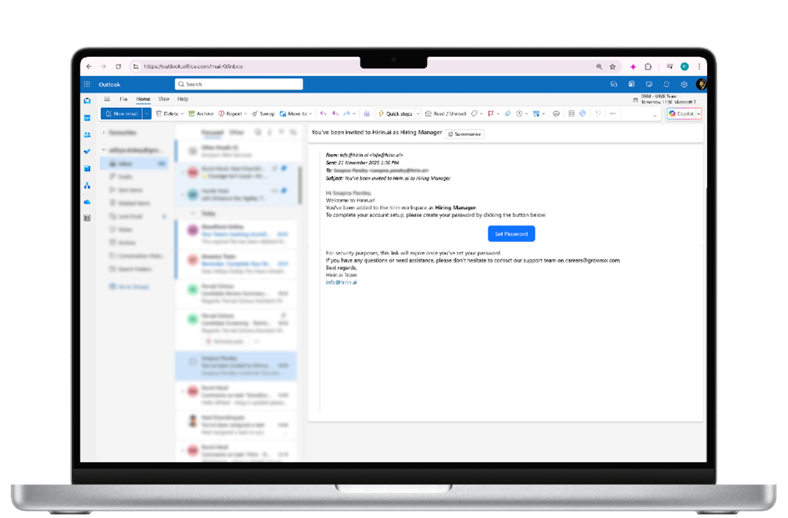
Note: If you were not sent an invite or it expired, ask your Admin to use Resend Invite from Settings > User Management. You can also use Forgot Password on the login page once your account exists.
Step 2: Log in
- Open Hirin URL : https://app.hirin.ai
- Enter your registered email address and the password you just set.
- Click Login.
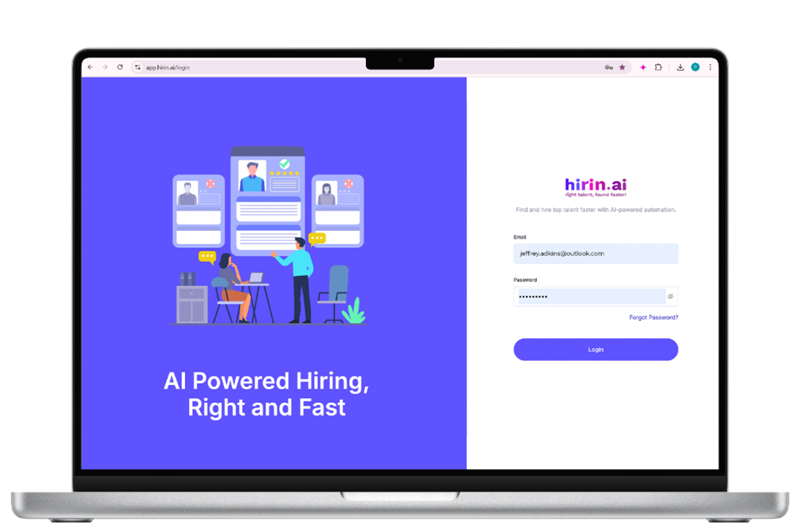
Step 3: Get oriented on the dashboard
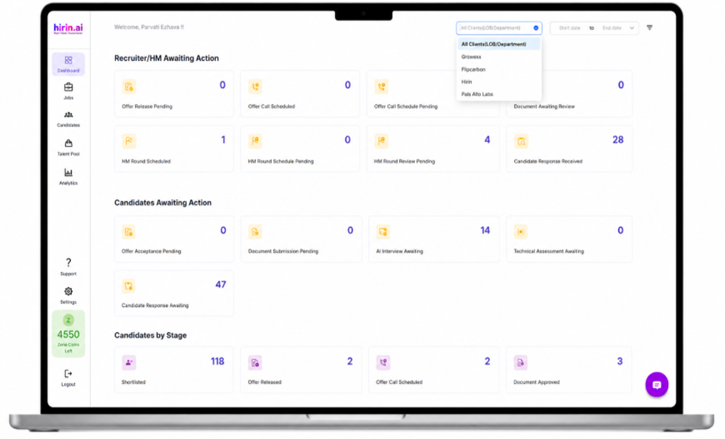
After logging in you land on the Dashboard, which opens with a personalised "Welcome, <Your Name>" message. The left sidebar is your main navigation and contains:
- Dashboard – your real-time hiring overview and to-do list.
- Jobs – create and manage job postings.
- Candidates – the global list of all candidates across jobs.
- Talent Pool – an AI-searchable database of sourced candidates.
- Analytics – recruitment KPIs and recruiter performance.
- Support – the Hirin help centre and knowledge base.
- Settings – timezone, email integration, users, and more.
- Logout – securely exit the platform.
Just above Logout you will also see your Zena Coins balance — the credits used for AI features such as screening and interviews.
Was this article helpful?
That’s Great!
Thank you for your feedback
Sorry! We couldn't be helpful
Thank you for your feedback
Feedback sent
We appreciate your effort and will try to fix the article