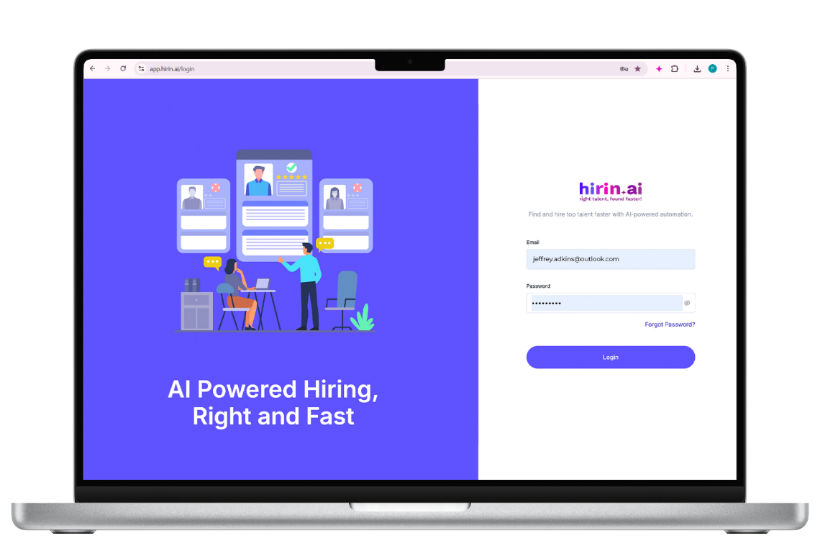
Login to Hirin.ai
Login to your hirin.ai account with recruiter/admin credentials.URL will be https://companyname.hirin.ai/
Navigate to Candidates Module
- Click on Candidates Module available on the left side panel.
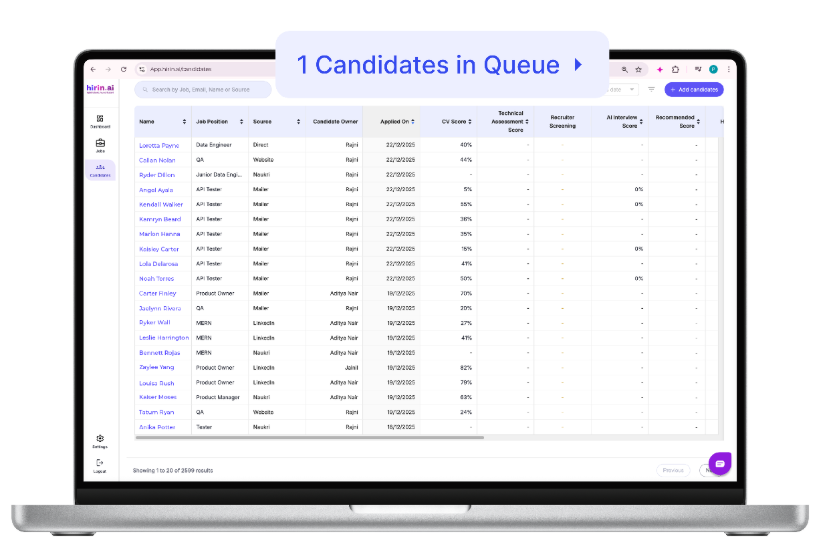
Access Pipeline Candidates
- We have an option to view Pipeline candidates on top beside search bar.
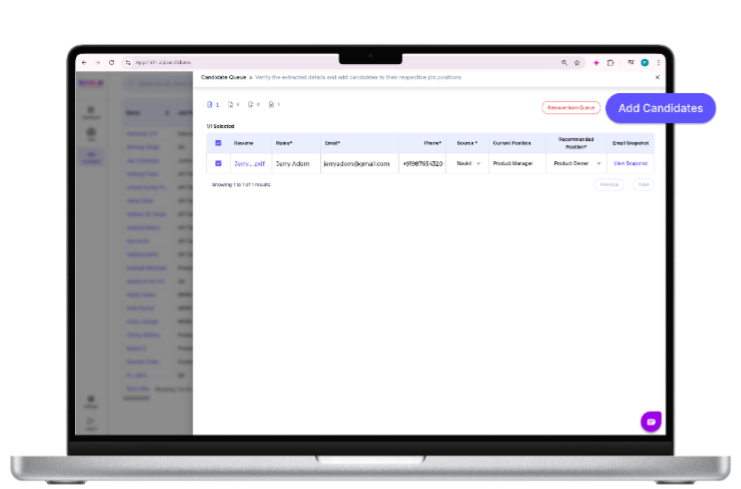
Move & Add Candidates from Pipeline
- Once you click on right side of candidates’ queue list, we have an option to move them.
- Make sure to check mandatory fields i.e., Name, Email, Phone, Source, Recommended Position once all fields filled then you will get an option highlighted with “Add candidates”.
- Candidates will be moved from pipeline to recommended job.
Value for You
- Quickly move shortlisted candidates into active hiring workflows
- Ensure all required candidate data is complete before processing
- Maintain a structured and organized pipeline
- Seamlessly transition candidates from sourcing to evaluation
- Helps you take faster action on relevant candidates without losing track
Was this article helpful?
That’s Great!
Thank you for your feedback
Sorry! We couldn't be helpful
Thank you for your feedback
Feedback sent
We appreciate your effort and will try to fix the article