The User Management module in Hirin.ai allows administrators to add, edit, activate, deactivate, and manage user access across the platform. This guide explains all available actions and how to use them.
Accessing User Management
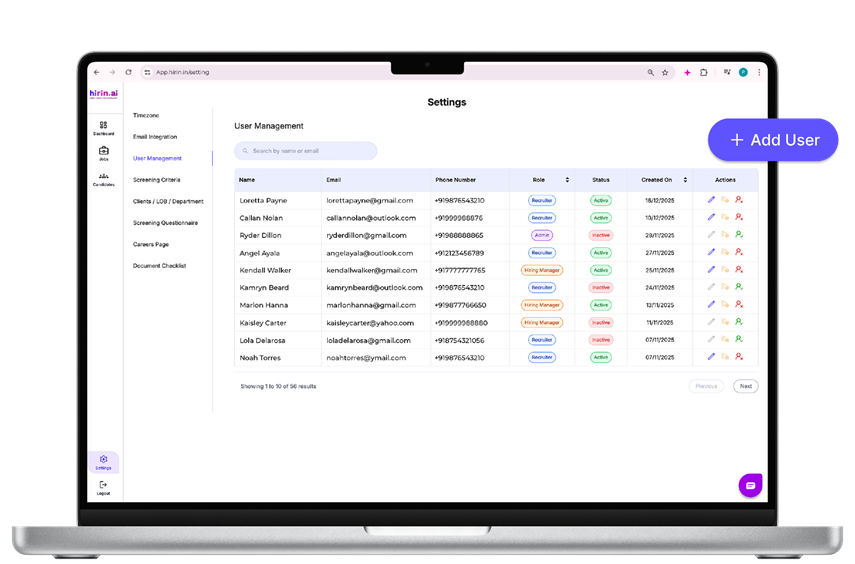
- Navigate to the left sidebar.
- Click on Settings.
- Select User Management from the available menu items.
- You will see a list of all users along with their details:
- Name
- Phone Number
- Role (Admin / Hiring Manager / Recruiter)
- Status (Active / Inactive)
- Created On Date
- Actions (Edit, Resend Invite, Activate, Deactivate)
- A search bar is available to quickly find users by name or email.
Adding a New User
- Click the + Add User button in the top-right corner.
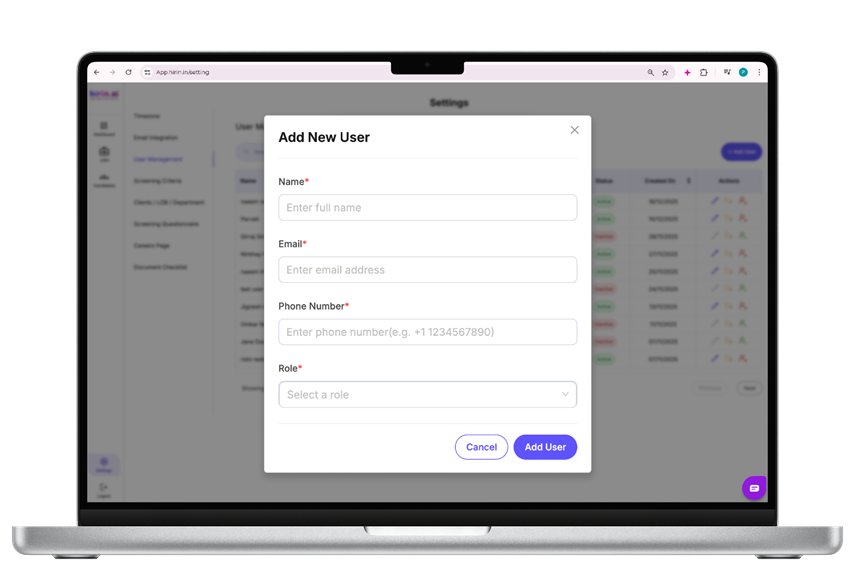
- A pop-up titled Add New User will appear.
- Enter the required details:
- Name*
- Email*
- Phone Number*
- Role* (Admin, Hiring Manager, Recruiter)
- Click Create User to send an invitation to the user’s email.
- Note: Users must accept the email invite and reset password to activate their account.
Editing an Existing User
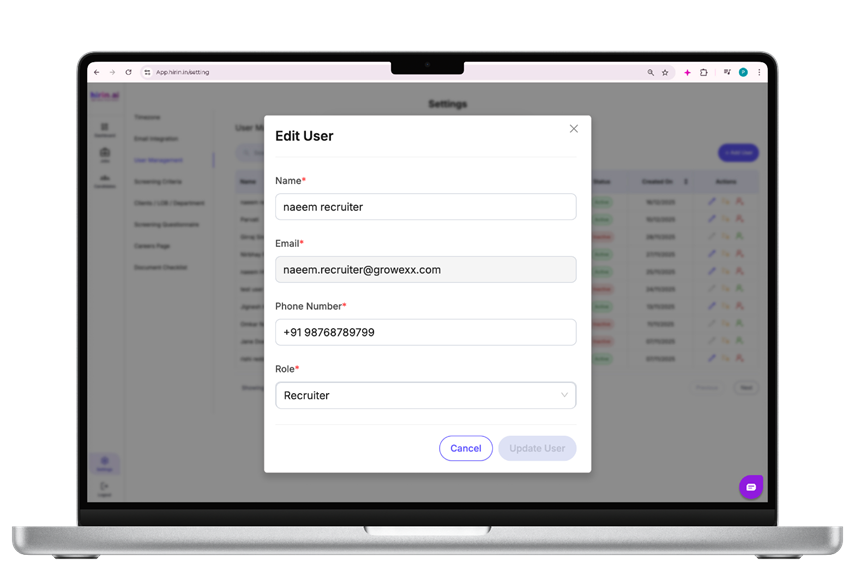
- In the user list, click the Edit (pencil icon) next to the desired user.
- The Edit User window will open.
- Update:
- Name
- Phone Number
- Role
- Click Update User to save the changes.
Activating a User
- Inactive users can be reactivated when needed.
- Steps:
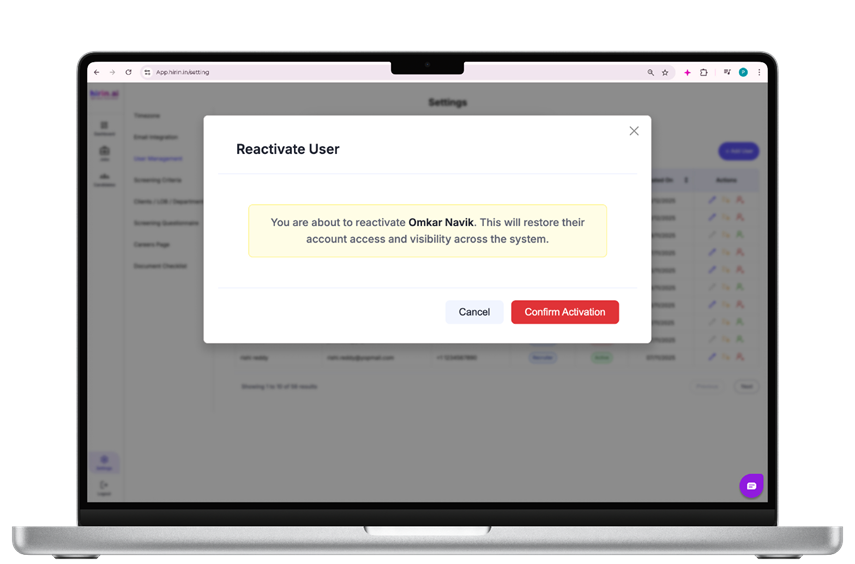
- Click the Activate (green key icon) next to the user.
- A confirmation dialog Reactivate User will appear.
- Review the message.
- Click Confirm Activation.
- The user’s access is instantly restored.
Deactivating a User
- Deactivation is used to revoke system access without deleting user data.
- Steps:
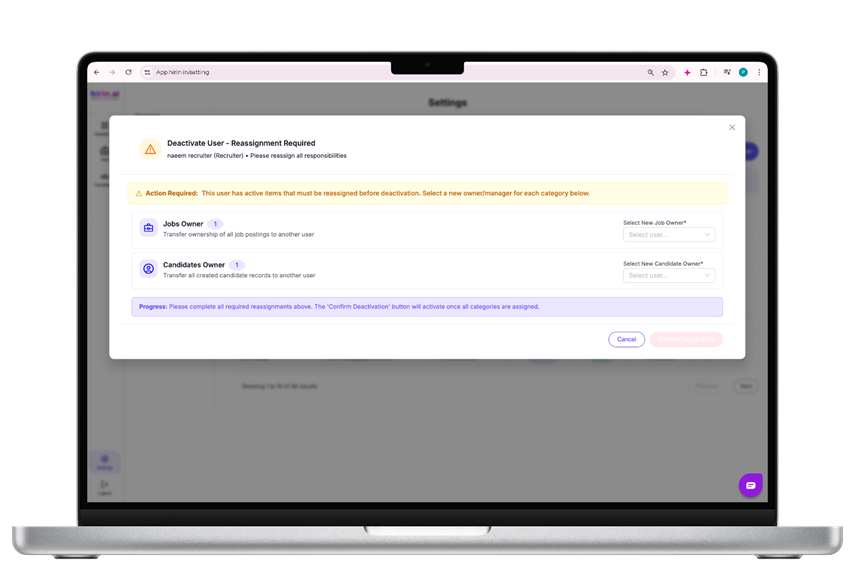
- Click the Deactivate (red key icon) next to the user.
- A confirmation popup will appear.
- The system will check whether:
- The user has active tasks
- The user is assigned to jobs
- There are pending items for the user
- If clear, you can proceed and click Confirm Deactivation.
- The user will immediately lose access.
Resending an Invitation
- If a user hasn’t activated their account yet:
- Click the Resend Invite (mail icon) next to the edit user icon.
- The invitation email will be resent automatically.
- This is useful when:
- The user didn’t receive the initial invite
- Email was mistyped and later corrected
Understanding User Roles
Role | Permissions Overview |
Admin | Full platform access, can manage all users, settings, clients, jobs. |
Hiring Manager | Can view/manage jobs and candidates which are assigned to them. |
Recruiter | Can manage candidates for the jobs created by them or collaborated with them, can create new jobs, communicate with applicants. |
Assign roles based on the level of access required.
Status Indicators
- Active (Green) – User has full access.
- Inactive (Red) – User is disabled and cannot log in.
Please find the video below for your reference.
Was this article helpful?
That’s Great!
Thank you for your feedback
Sorry! We couldn't be helpful
Thank you for your feedback
Feedback sent
We appreciate your effort and will try to fix the article