Navigation Path
- Settings → Clients / Line of Business / Department
- This page displays the list of existing clients along with their active jobs, status, and action options.
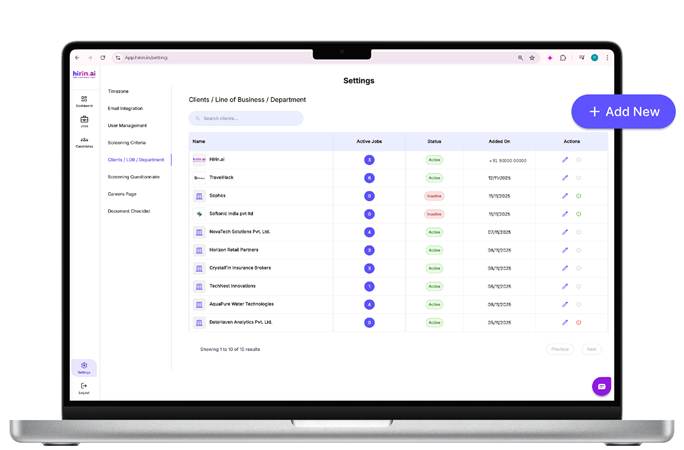
Figure 1: Navigation Path
A. Add New Client / LOB / Department
- Follow the steps below to add a new Client / LOB / Department:
- Open Add New Form
- Click on the “+ Add New” button located at the top-right corner of the page.
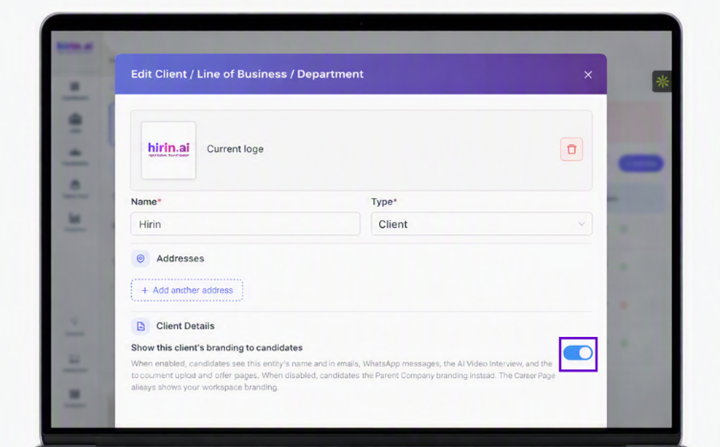
Upload Logo (Optional)
- Click on Choose File to upload the client’s logo.
- Supported formats: JPG / PNG / SVG.
- Note: If the logo is not uploaded, the system will use the default logo for communication and candidate interactions
Enter Name
- Enter the Client / LOB / Department name in the Name field.
Save
- Click on Save to create the Client / LOB / Department.
- The new entry will now appear in the listing page.
B. Edit Client / LOB / Department
You can edit the name or logo of an existing client by following these steps:
Select Client
- From the Clients / LOB / Department list, locate the required entry.
- Click on the Edit icon under the Actions column.
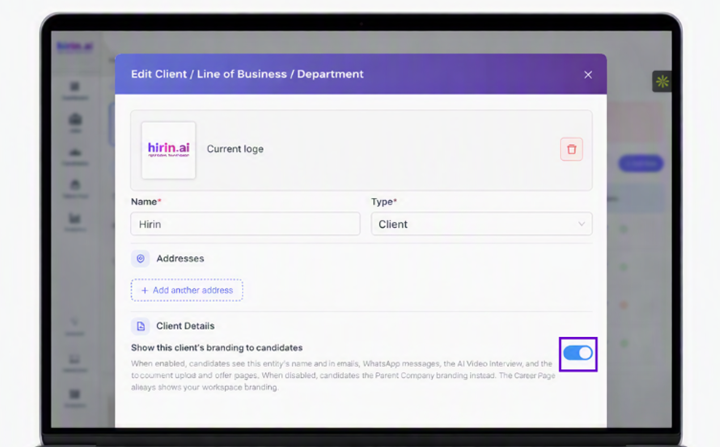
Update Details
- Update the Name if required.
- Replace or remove the existing Logo if needed.
- Click on Update to save the changes.
- The updated details will reflect immediately.
C. Type & Parent Selection
When creating a Line of Business or a Department, the entity must be linked to a parent.
- Select the Type first – Client, Line of Business or Department.
- Selecting a Parent is mandatory for a Line of Business and a Department.
- The Parent dropdown only displays valid options based on the Type selected, so an entity cannot be placed under the wrong level.
D. Entity Branding
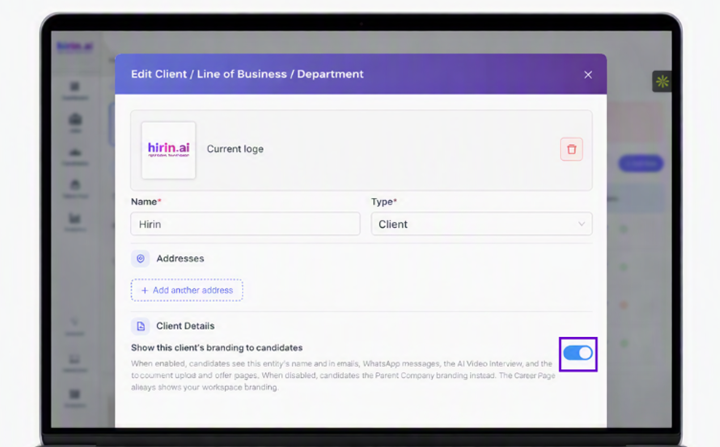
A single branding option is now available on the Add / Edit form: “Show this entity's branding to candidates”.
This controls whether the entity's name and logo are shown to candidates across:
- Job Application
- AI Recruiter Screening
- AI Video Interview
- Emails and WhatsApp messages
- Document upload and offer pages
- Other candidate communications
- Branding ON – candidates see the selected entity's name and logo.
- Branding OFF – candidates see the Parent Company branding instead.
Note: The Careers Page always shows your workspace branding, regardless of this setting.
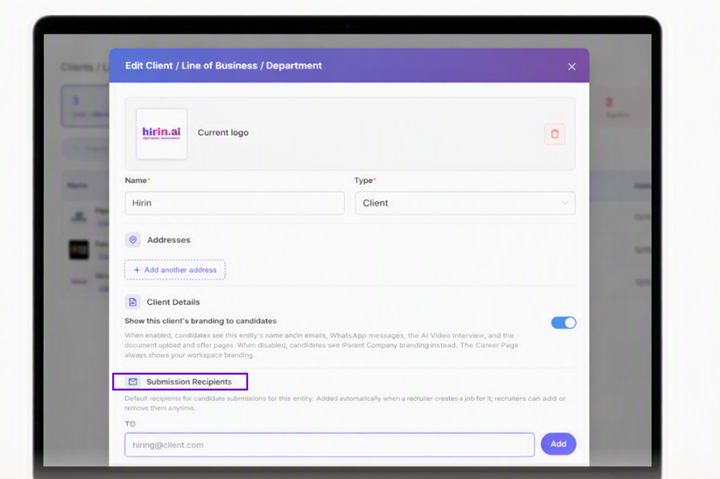
E. Client Submission Notification Recipients
Notification recipients for Client Submission can now be configured at the Client level.
- Add the default Submission Recipients while adding or editing a Client.
- These recipients are added automatically when a recruiter creates a job for that Client.
- For a Line of Business or Department, recipients are inherited from the parent Client.
- Recipients can still be added, removed or overridden while creating a job when required.
Additional Notes
- Only users with appropriate admin access can add or edit Clients / LOB / Departments.
- Activating or deactivating a client can impact job visibility and workflows.
- Parent selection is mandatory for a Line of Business and a Department; the dropdown only offers valid parents.
- Branding and Submission Recipients set on a Client flow down to its Lines of Business and Departments unless they are overridden.
Value for You
- Organize jobs and hiring workflows efficiently by Client, LOB, or Department
- Maintain consistent branding with client-specific logos in candidate communication
- Improve visibility and tracking of active jobs across teams
- Easily manage and update business structures from a centralized location
- Helps keep hiring operations organized, scalable, and easier to manage
Was this article helpful?
That’s Great!
Thank you for your feedback
Sorry! We couldn't be helpful
Thank you for your feedback
Feedback sent
We appreciate your effort and will try to fix the article