System Requirements
Before starting, ensure the following:
- A laptop or desktop with a working camera and microphone
- Stable internet connection
- Latest version of Google Chrome (recommended)
- Quiet, well-lit environment
Note: Mobile devices are not recommended for the best experience.
Accessing the Interview
- Click the interview link shared via email and WhatsApp.
- The link is unique and intended only for you.
- Do not refresh or share the link once the interview has started.
Camera & Microphone Permission
Camera & Microphone Permission
When the interview page opens:
- Allow browser access to your camera and microphone
- Select the correct camera and audio device from the dropdowns
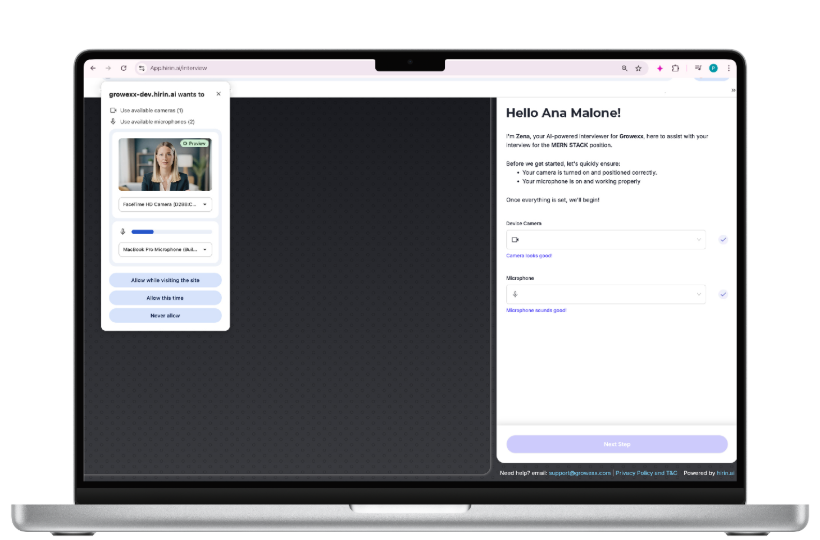
Figure 1: Camera & Microphone Permission
Step 1: Check Microphone First
- Click on the microphone icon to test your audio
- Speak a few words to ensure your voice is captured clearly
- You will see the message “Microphone sounds good!” once verified
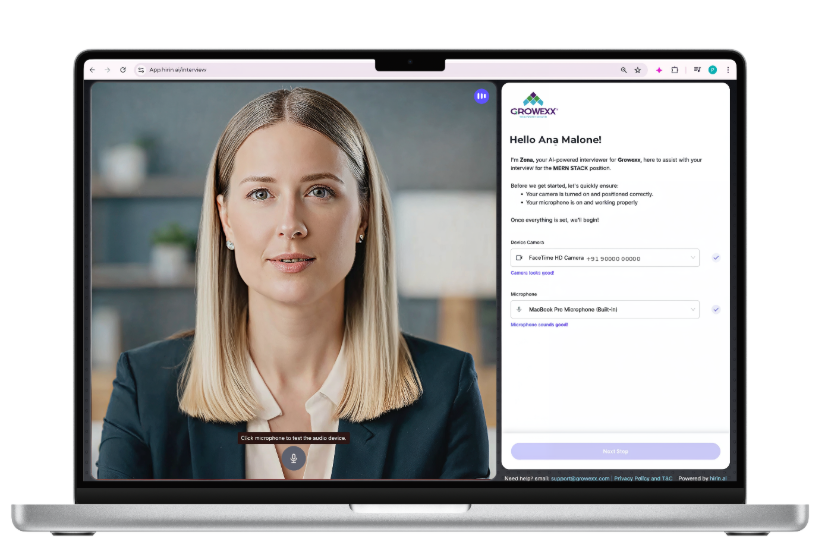
Figure 2: Camera & Microphone Permission
Step 2: Check Camera
- Ensure your face is clearly visible on screen
- Adjust lighting and position if required
- You will see the message “Camera looks good!” once verified
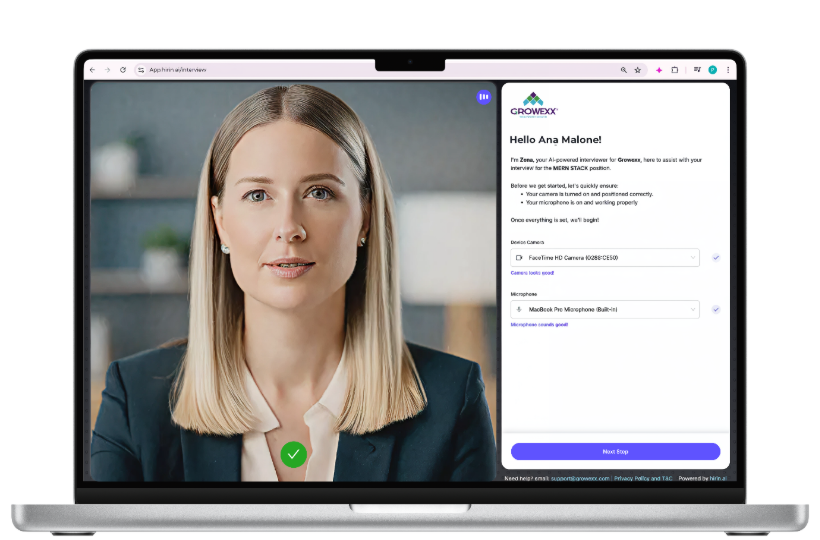
Figure 3: Camera & Microphone Permission
Once both microphone and camera are verified, click Next Step to proceed.
Pre-Interview Instructions
Before the interview begins, important instructions are displayed on screen:
- Keep your camera and microphone ON throughout the interview
- Each question includes a 5-second countdown before recording starts
- Answer clearly and stay within the allotted time
- Submit each response to move forward
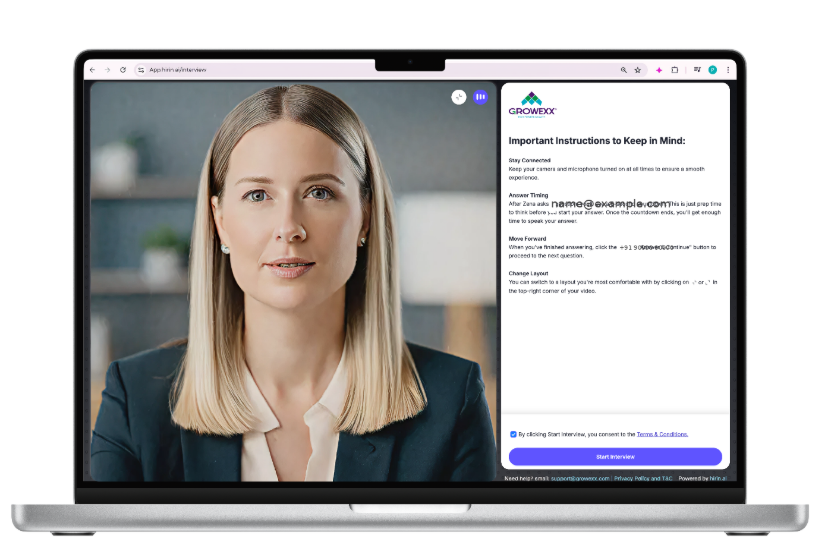
Figure 4: Pre-Interview Instructions
You must agree to the Terms & Conditions and click Start Interview.
Interview Experience
Question Flow:
- Each question is first displayed and read out by the AI interviewer (Zena)
- Candidates can read and understand the question before answering
- Only after the AI finishes asking the question, a 5-second countdown begins
- Recording starts automatically once the countdown ends
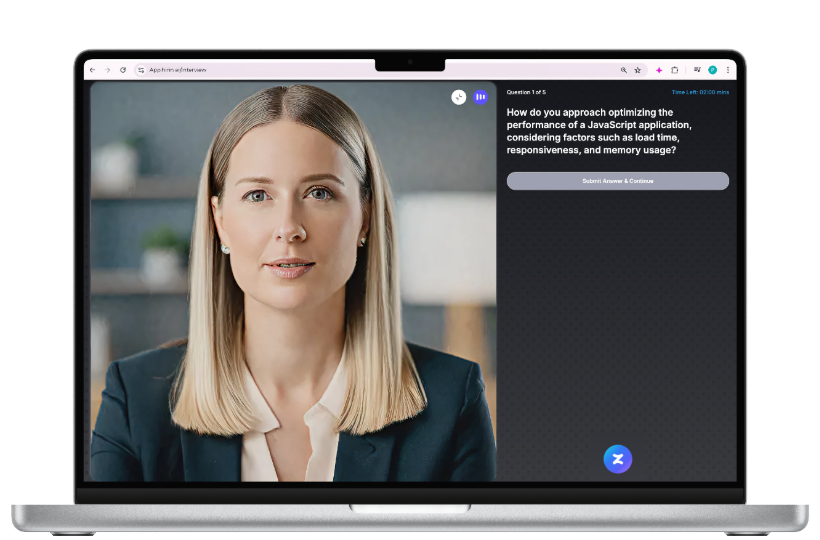
Figure 5: Interview Experience
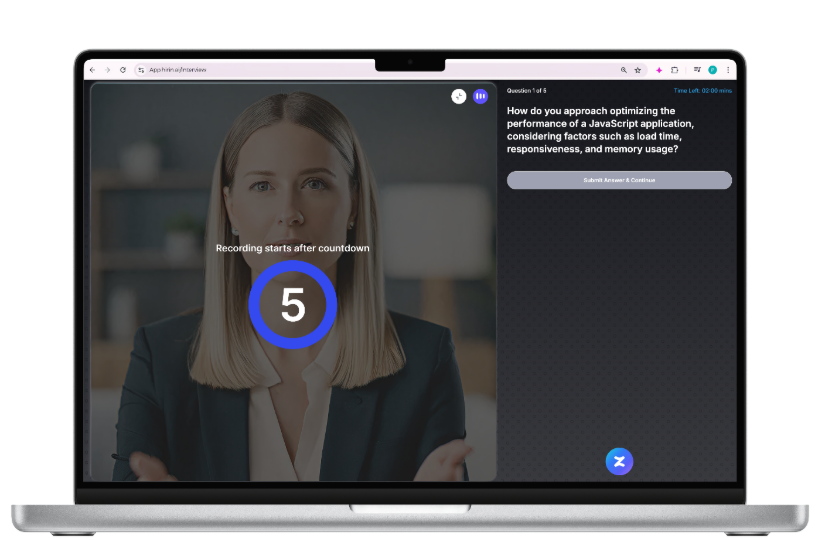
Figure 6: Interview Experience
Answering Questions:
- Look at the camera while answering
- Speak clearly and confidently
- Use the full response time if needed
- Click Submit Answer & Continue to proceed to the next question.
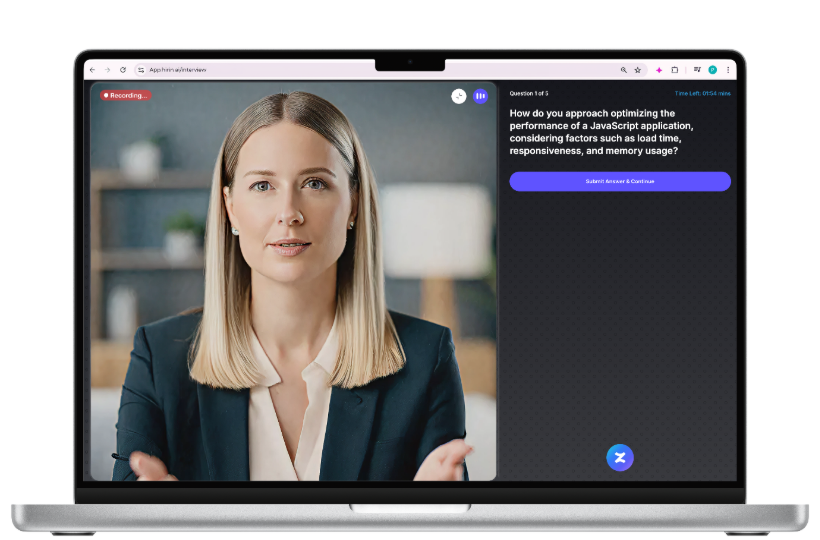
Figure 7: Interview Experience
Full-Screen Monitoring
- The interview runs in full screen mode
- Exiting full screen is tracked by the system
- Repeated exits may impact interview evaluation.
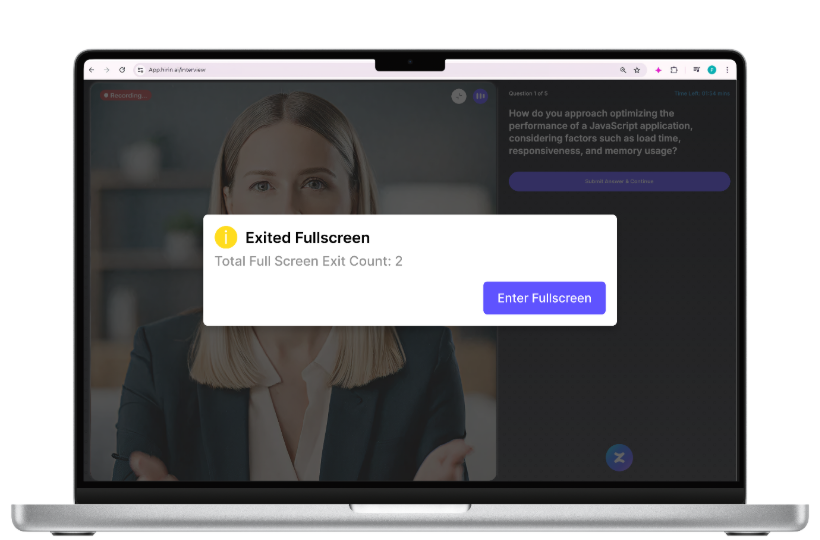
Figure 8: Interview Experience
Interview Completion
Once all questions are answered, the interview moves into the completion stage.
Interview Submission
- The interview is automatically submitted after the final question
- No further action is required from your side
Submit Feedback
After successful submission, you will be asked to share your interview experience.
- Rate your experience using the star rating
- Optionally add comments in the feedback box
- Click Submit to complete the process
- Your feedback helps us improve the interview experience.
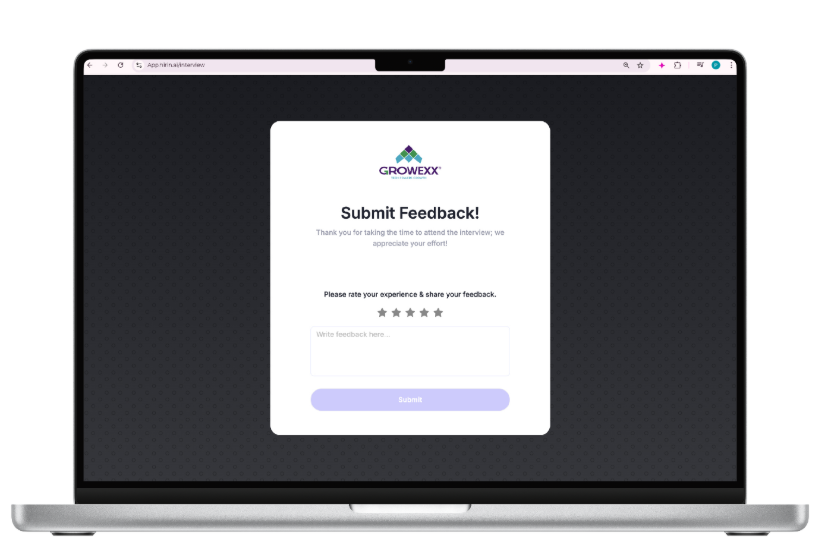
Figure 9: Submit Feedback
Feedback Confirmation
After submitting feedback, you will see a confirmation message:
- “Thank You for Your Feedback!”
- Your response has been successfully recorded
- Best wishes are displayed for your application
- This marks the end of the interview process.
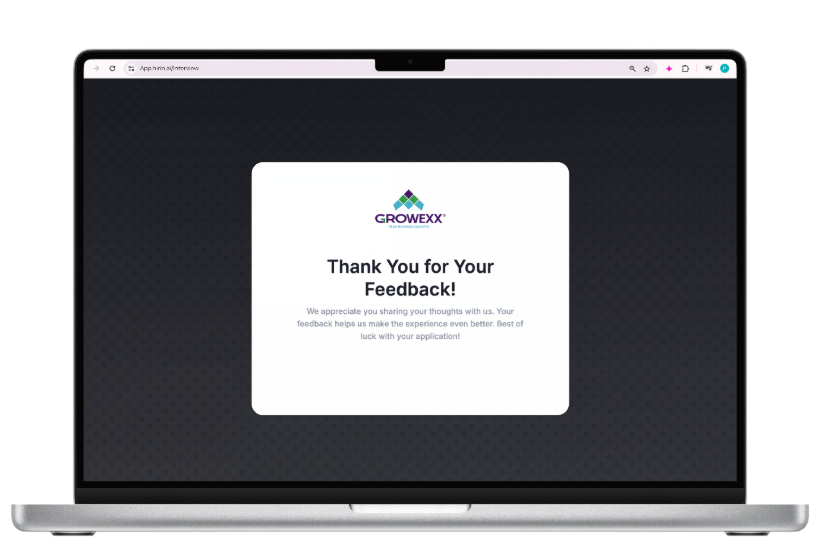
Figure 10: Feedback Confirmation
Was this article helpful?
That’s Great!
Thank you for your feedback
Sorry! We couldn't be helpful
Thank you for your feedback
Feedback sent
We appreciate your effort and will try to fix the article