Step-by-Step Process
Step 1: Open the candidate's Interview Assessment
- Open a job (Jobs > select a job) and go to the candidate list.
- Click the candidate's name to open the Candidate Details page.
- Select the Interview Assessment tab. This tab appears once the candidate has appeared for the AI Interview.
Step 2: Play or download the combined recording
At the top of the Interview Assessment tab you will see the AI Interview Recording card, showing the number of questions and the total duration.
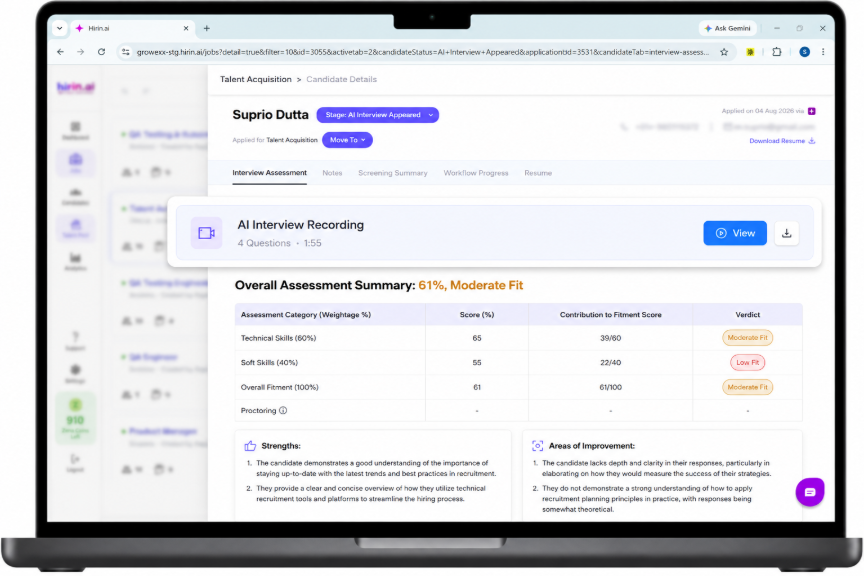
Figure 1: AI Interview Recording card with View and Download options
- Click View to watch the entire AI Interview as one combined video, without switching between individual question recordings.
- Click the Download icon to save the complete interview recording for offline review or for sharing with hiring stakeholders.
Viewing the interview as a single recording eliminates the need to open individual question recordings and makes candidate evaluation faster and more convenient.
Was this article helpful?
That’s Great!
Thank you for your feedback
Sorry! We couldn't be helpful
Thank you for your feedback
Feedback sent
We appreciate your effort and will try to fix the article