Step-by-Step Process
Step 1: Enable AI Call Screening in the workflow
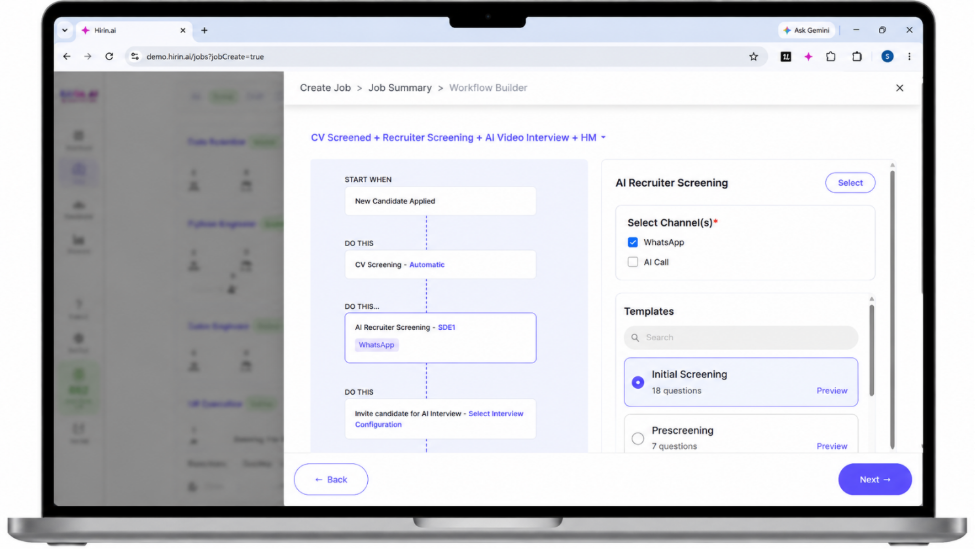
- Create or edit a job and open the Workflow step.
- At the AI Recruiter Screening stage, choose your screening channel(s): WhatsApp Screening, AI Call Screening, or both.
- If you select both, WhatsApp screening is attempted first; if the candidate does not respond, an AI call is initiated automatically.
- Select the screening criteria and, if required, enable Auto-Rejection so candidates who do not meet the criteria are filtered out automatically.
- Save the workflow / publish the job.
Note: AI call attempts are made within a configured daily window (commonly 9:00 AM – 9:00 PM). The exact window is tenant-configurable — confirm with your Hirin point of contact.
AI Screening Callback Handling
- If a candidate misses an AI screening call and calls back, screening is not conducted on the inbound call.
- After the call ends, the system waits 1 minute and automatically places a new AI screening call.
- Applies only to candidates in the AI Screening stage with incomplete screening.
- Only one automated retry call is triggered per callback.
Improves candidate experience and screening completion rates.
Step 2: Review call results
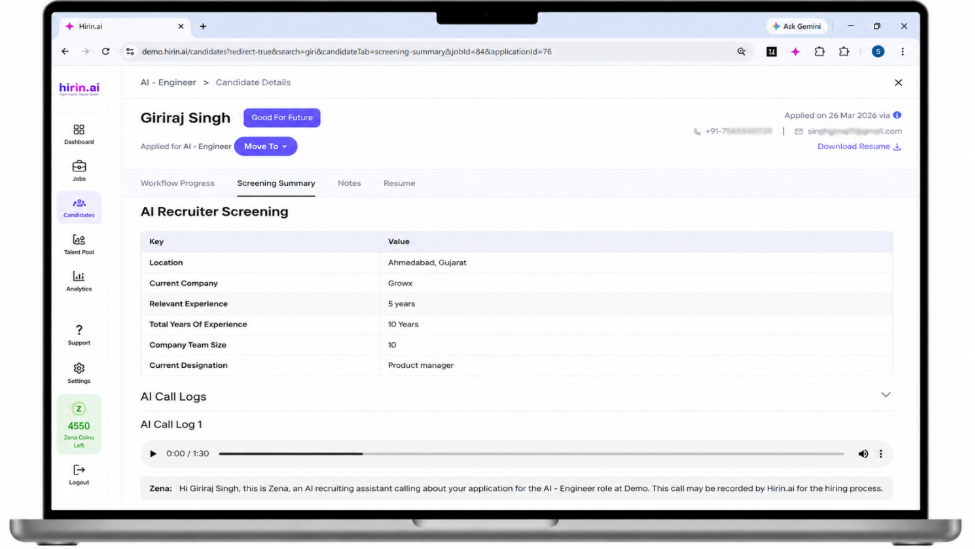
- Open the candidate and go to the Screening Summary tab.
- Review the call recording, transcript, and the candidate's answers to the screening questions.
- Use the stage filters / dashboard cards (e.g. Candidate Response Received) to track who has completed screening.
Was this article helpful?
That’s Great!
Thank you for your feedback
Sorry! We couldn't be helpful
Thank you for your feedback
Feedback sent
We appreciate your effort and will try to fix the article