Step-by-Step Process
Step 1: Find a template
- Use the All, Active, or Deactivated filter (each with counts), or search by template name, question, or attribute.
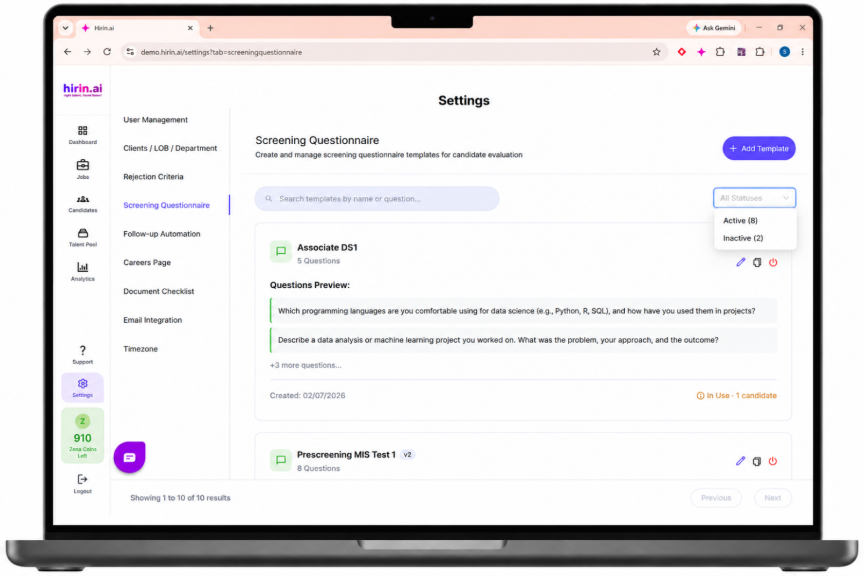
Figure 1: Filtering and searching Screening Questionnaire templates.
Step 2: Review attributes
- Standard and Custom attributes appear in separate sections. Standard Attributes are built-in and cannot be deleted.
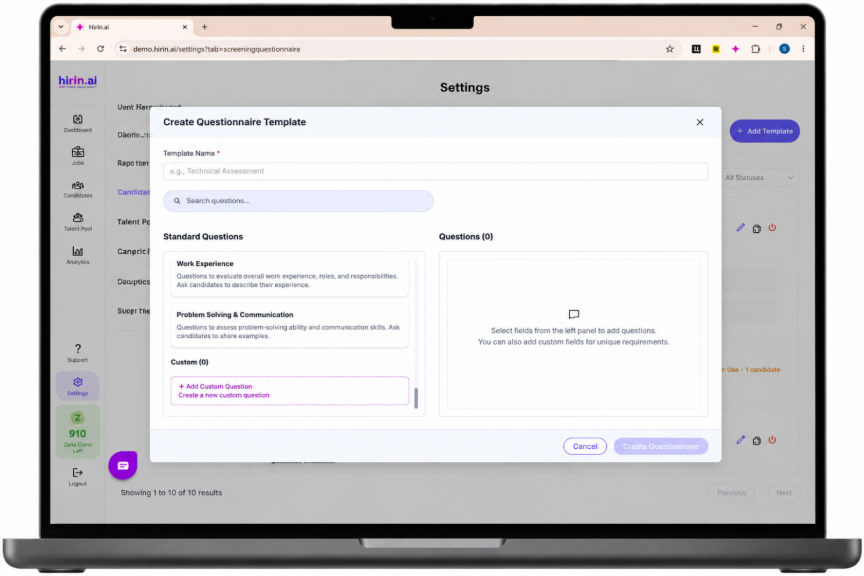
Figure 2: Standard and Custom attributes shown separately.
Step 3: Delete a Custom Attribute
- Custom Attributes can be managed and deleted. When you delete a Custom Attribute that is already used in a template, an Impact Preview is shown before the changes are saved.
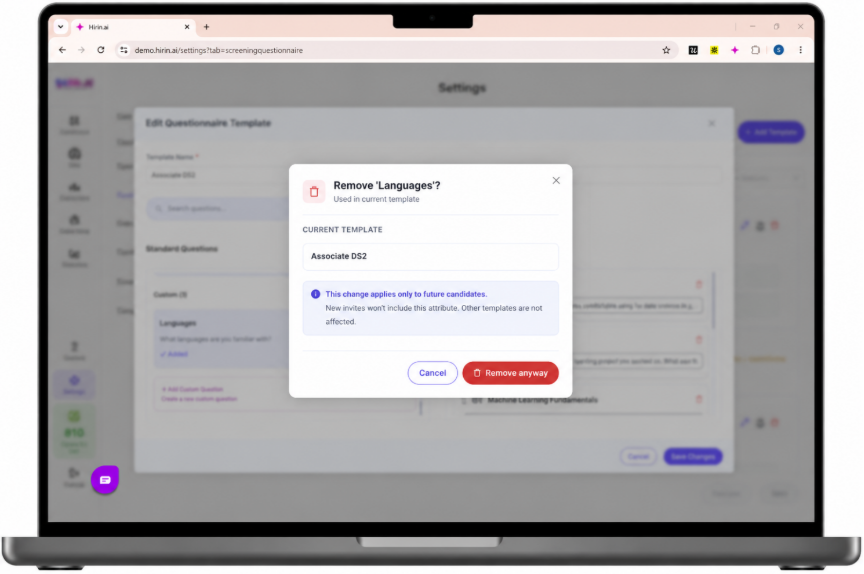
Figure 3: Impact Preview shown when deleting a Custom Attribute in use.
Things to Remember
- Review the Impact Preview before deleting a Custom Attribute that is in use, as it affects existing templates.
Was this article helpful?
That’s Great!
Thank you for your feedback
Sorry! We couldn't be helpful
Thank you for your feedback
Feedback sent
We appreciate your effort and will try to fix the article