Where to Find Screening Questionnaires
- Go to: Settings → Screening Questionnaire
- Here you can view all existing screening criteria templates.
How to Create a New Screening Questionnaire
Step 1: Click on Add Template
- On the top-right corner of the page, click Add Template.
- This opens the Create Questionnaire Template window.
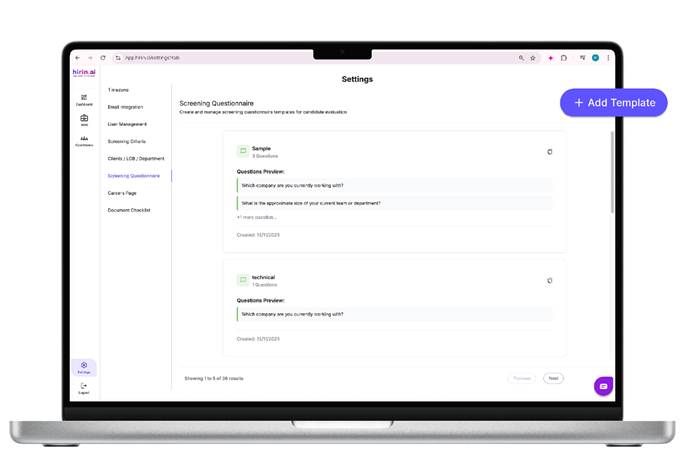
Figure 1: How to Create a New Screening Questionnaire
Step 2: Enter Template Name
In the Template Name field, enter a meaningful name.
Examples:
- Initial Screening
- HR Screening
- Technical Pre-Screening
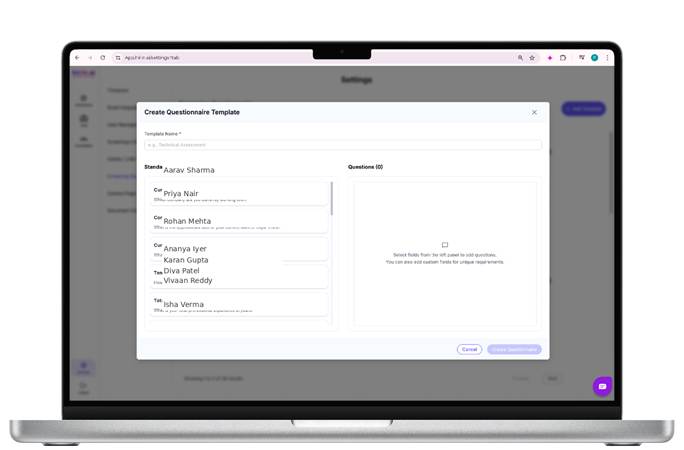
Figure 2: How to Create a New Screening Questionnaire
Step 3: Add Standard Questions
On the left side, you will see Standard Attributes. These are commonly used questions such as:
- Current Company
- Current Designation
- Tenure in Current Company
- Total Years of Experience
- Company Team Size
Click on any attribute to add it to your questionnaire.
Once added, it will appear on the right side under Questions and will be marked as Added.
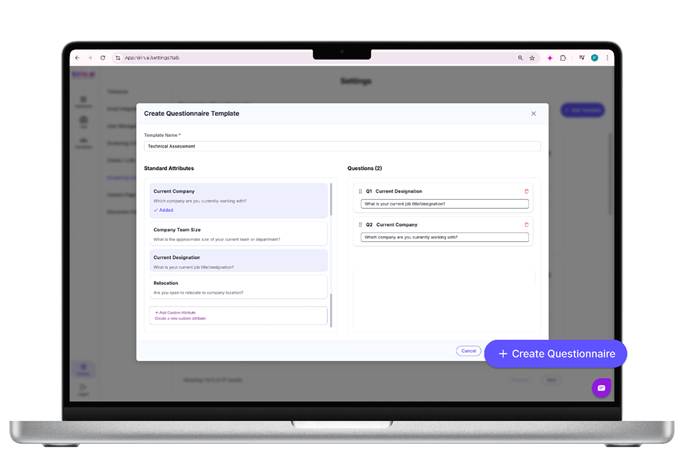
Figure 3: How to Create a New Screening Questionnaire
Step 4: Add Custom Questions (Optional)
If you want to add your own question:
- Enter an Attribute Name (example: Technical Skills)
- Enter the Question (example: Which tools or technologies are you proficient in?)
- Click Add Custom Attribute
The custom question will be added to the questionnaire.
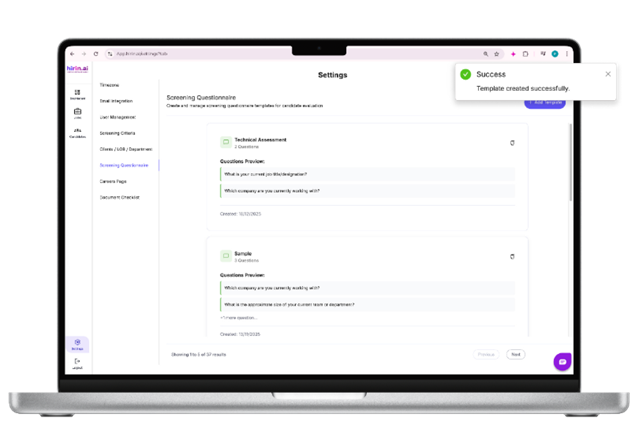
Figure 4: How to Create a New Screening Questionnaire
Step 5: Review and Create Questionnaire
Check the questions listed on the right side.
You can:
- Review the question text
- Check the order of questions
- Remove any question if needed
Once everything looks correct, click Create Questionnaire.
Edit, Activate/Deactivate & Versioning
- Edit, clone, activate, or deactivate questionnaire templates.
- View template usage with In Use indicators showing linked jobs and candidates.
- Add, edit, remove, or reorder questions using drag-and-drop.
- Automatic version control ensures existing candidate data remains unaffected when updating templates already in use.
Value for You
- Reuse and customize screening questionnaires quickly
- Standardize candidate screening across job openings
- Collect key candidate information automatically
- Reduce manual follow-ups and setup effort
- Helps streamline early-stage screening and improve recruiter efficiency
Was this article helpful?
That’s Great!
Thank you for your feedback
Sorry! We couldn't be helpful
Thank you for your feedback
Feedback sent
We appreciate your effort and will try to fix the article