Access Recruitment Analytics Dashboard
- Login to your Hirin.ai account
- Navigate to the Recruitment Analytics Dashboard from the main menu
- The dashboard provides centralized visibility into hiring metrics and recruitment performance.
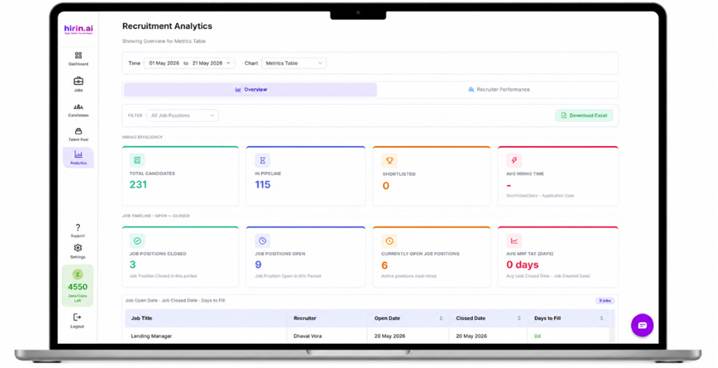
Hiring Efficiency
The Hiring Efficiency section displays important recruitment KPI metrics.
Available KPI Cards
- Total Candidates
- Shortlisted Candidates
- Candidates In Pipeline
- Average Hiring Time
These metrics help track overall hiring efficiency and recruitment progress.
Job Timeline
The Job Timeline section provides job-level hiring insights.
Available KPI Cards
- No. of Positions Closed
- Positions Open
- Currently Open (real-time count without date filter)
- Average MRF TAT
MRF TAT Logic
- Average MRF TAT is calculated as:
- Closed Date - Created Date
- Helps measure the average time taken to close job positions.
Recruiter Performance Tab
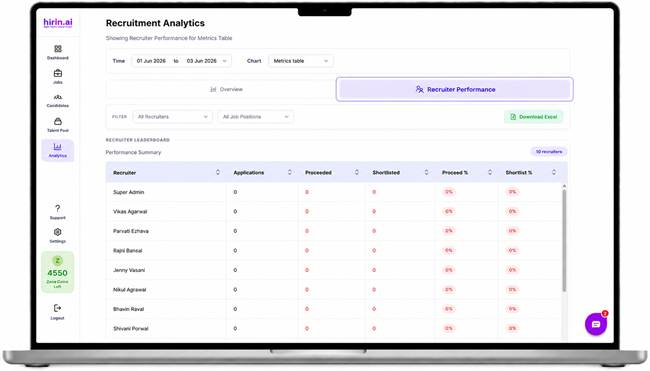
The Recruiter Performance tab displays recruiter-wise hiring performance and response efficiency.
Recruiter Metrics Available
- Recruiter Name
- Applications
- Proceeded
- Shortlisted
- Proceed %
- Shortlist %
- Average Recruiter TAT
Recruiter TAT Logic
The system automatically calculates recruiter turnaround time (TAT).
TAT Calculation
- Application Date → Automatically captured when the candidate is added or applies
- Shortlisted Date → Automatically captured when the recruiter shortlists the candidate
- Average Recruiter TAT = Shortlisted Date - Application Date
TAT Status Badges
Recruiter performance is highlighted using TAT status indicators.
Badge Types
- Fast → Less than 8 hours
- Moderate → Between 8 to 24 hours
- Slow → More than 24 hours
TAT thresholds are tenant configurable.
Client / LOB / Department Filters
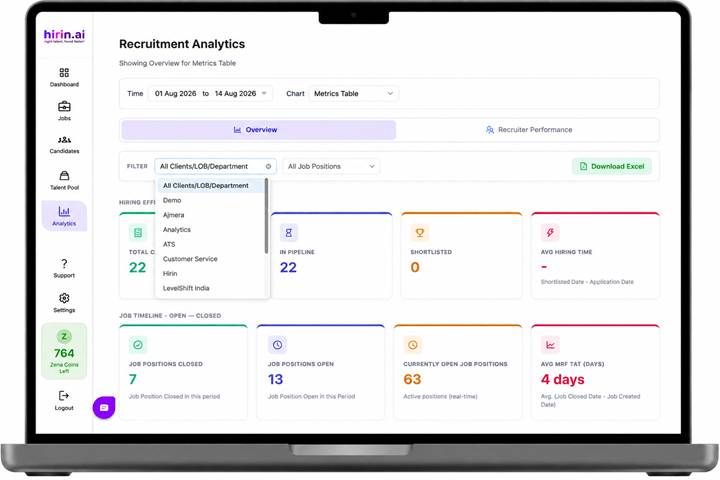
The Overview and Recruiter Performance tabs now include a Client / LOB / Department filter, so you can view analytics for one client, line of business or department instead of the whole organisation.
- Open Analytics → Recruitment Analytics.
- Select either the Overview tab (which holds the Hiring Efficiency and Job Timeline cards) or the Recruiter Performance tab.
- In the FILTER row, open the first dropdown — All Clients/LOB/Department. It appears before the existing Job Positions filter.
- Select the Client, LOB or Department you want to analyse. Every KPI card, chart and table on the tab refreshes for that selection.
- Combine it with the Job Positions filter and the Time range to narrow the view further.
- Clear the selection (or choose All Clients/LOB/Department) to return to organisation-wide numbers.
- Download Excel exports the data for the current filter selection.
Value for You
With this dashboard, Talent Acquisition teams can:
- Monitor hiring performance in real time
- Track recruiter efficiency and responsiveness
- Measure hiring turnaround time
- Analyze recruitment progress across jobs and pipelines
Better visibility, faster decision-making, and improved hiring efficiency
Was this article helpful?
That’s Great!
Thank you for your feedback
Sorry! We couldn't be helpful
Thank you for your feedback
Feedback sent
We appreciate your effort and will try to fix the article