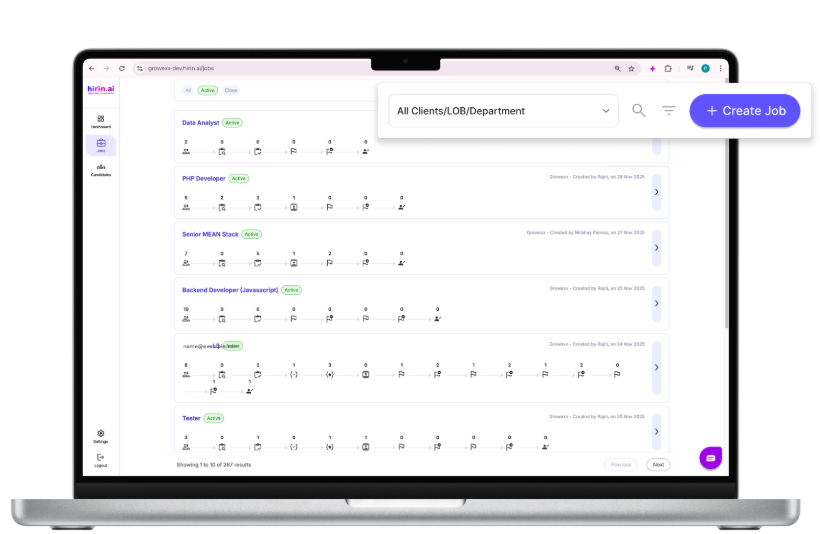
Getting to the Workflow
- Click Jobs in the left sidebar and open (or create) a job.
- Add job details by uploading a job description or generating one with Zena.
- Select the relevant Client, LOB, or Department.
- Open the Workflow step to choose and configure your workflow.
Note: Hirin provides ready-made workflow templates you can select yourself. More advanced, fully custom workflows can be configured with help from your Hirin point of contact.
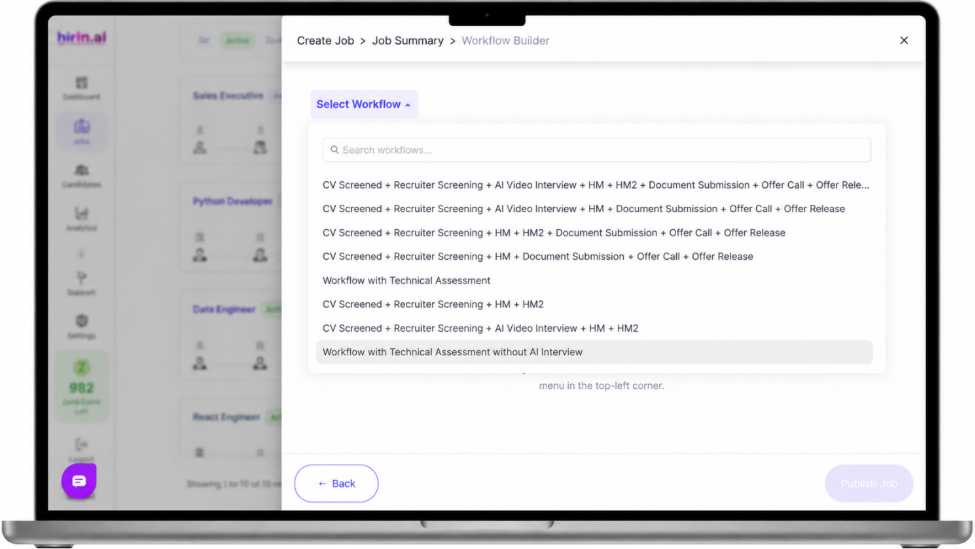
Figure 2: Job details before selecting a workflow
Selecting a Workflow
- In the Workflow step, click Select Workflow at the top-left.
- A dropdown of available workflow templates appears — use the search bar to find one quickly.
- Click the workflow you want. Its stages load and display on the right-hand side.
Workflow Examples
Workflow 1: Detailed / Technical Hiring
- Ideal for roles that need multiple evaluation stages. Steps: Start when New Candidate Applied → CV Screening → Trigger WhatsApp template "Only Relocation" → Invite candidate for AI Interview → Hiring Manager Round 1 → Hiring Manager Round 2 → End.
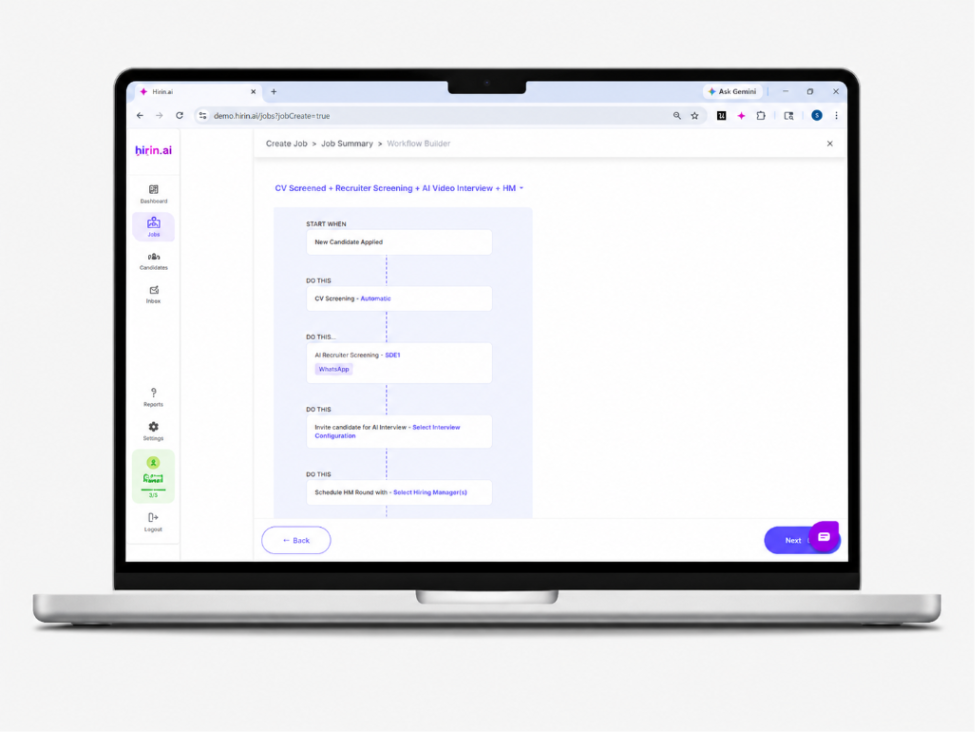
Figure 3: Detailed / technical hiring workflow
Workflow 2: Quick / Basic Hiring
Getting to the Workflow
- Click Jobs in the left sidebar and open (or create) a job.
- Add job details by uploading a job description or generating one with Zena.
- Select the relevant Client, LOB, or Department.
- Open the Workflow step to choose and configure your workflow.
Note: Hirin provides ready-made workflow templates you can select yourself. More advanced, fully custom workflows can be configured with help from your Hirin point of contact.
Figure 2: Job details before selecting a workflow
Selecting a Workflow
- In the Workflow step, click Select Workflow at the top-left.
- A dropdown of available workflow templates appears — use the search bar to find one quickly.
- Click the workflow you want. Its stages load and display on the right-hand side.
Workflow Examples
Workflow 1: Detailed / Technical Hiring
- Ideal for roles that need multiple evaluation stages. Steps: Start when New Candidate Applied → CV Screening → Trigger WhatsApp template "Only Relocation" → Invite candidate for AI Interview → Hiring Manager Round 1 → Hiring Manager Round 2 → End.
Figure 3: Detailed / technical hiring workflow
Workflow 2: Quick / Basic Hiring
- Designed for faster hiring. Steps: Start when New Candidate Applied → CV Screening → Trigger WhatsApp template "Initial Screening" → Hiring Manager Round → End.
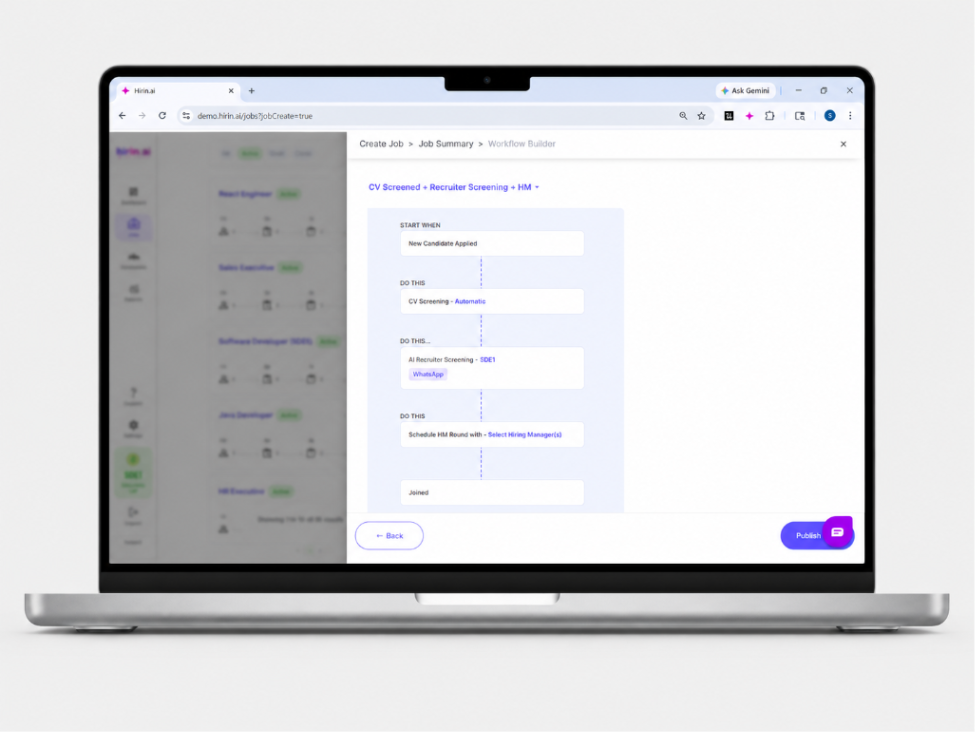
Figure 4: Quick / basic hiring workflow
AI Recruiter Screening Configuration
Enable WhatsApp Screening, AI Call Screening, or both. If both are selected, WhatsApp is triggered first and an AI call follows automatically if there is no response. AI call reminders are sent within a configurable window (commonly 9:00 AM – 9:00 PM).
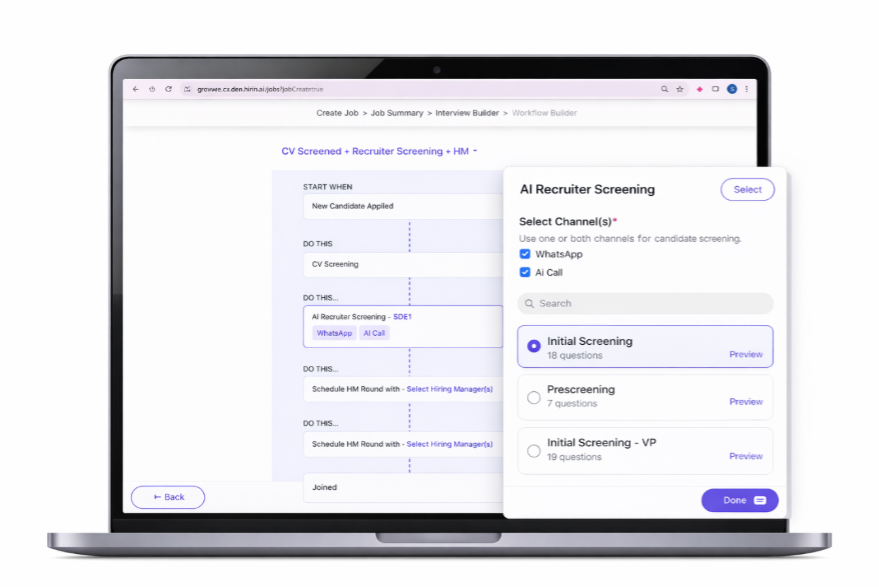
Figure 5: AI recruiter screening configuration
You can also select predefined screening criteria and configure auto-rejection. When auto-rejection is on, candidates who do not meet the criteria are filtered out during screening. All call recordings, transcripts, and WhatsApp logs are available in the candidate's Screening Summary.
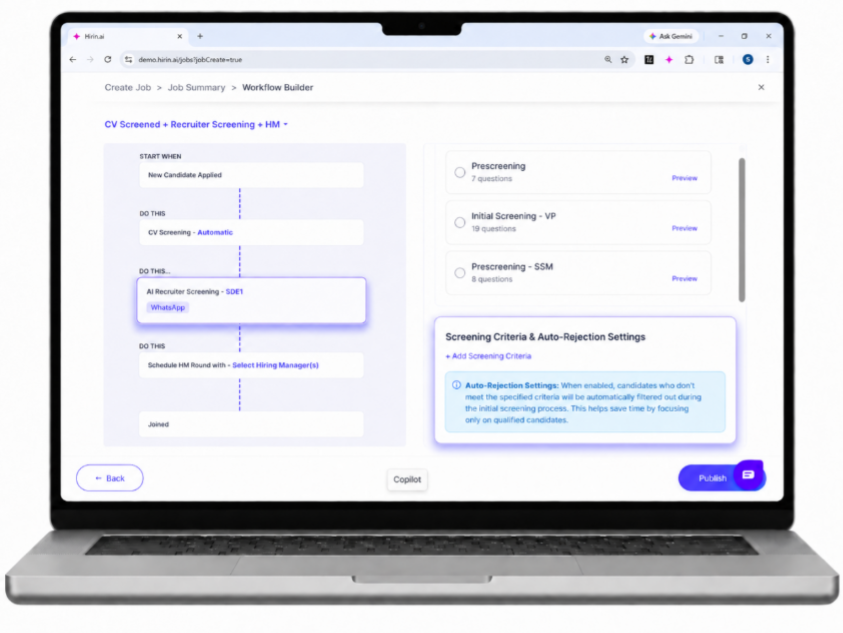
Figure 6: Applying screening criteria and auto-rejection
Edit Screening Criteria
Open the job and navigate to Workflow → Screening Criteria.
Click the Edit icon to update the screening criteria
Impact Preview
Displays the number of candidates affected by the change.
Only candidates in the AI Recruiter Screening stage with pending screenings are re-evaluated.
Historical screening results and analytics remain unchanged.
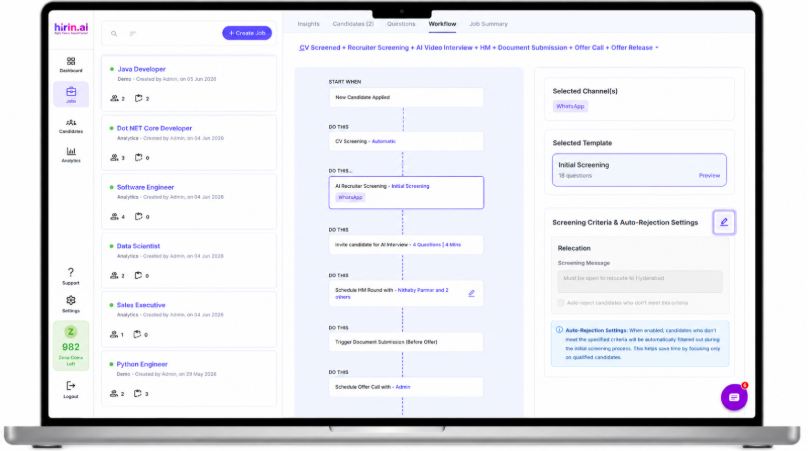
Figure 7: Editing screening criteria in existing job
Follow-up Workflow Configuration
While configuring the AI Recruiter Screening stage of a job (Create Job → Workflow → AI Recruiter Screening), you can now select the follow-up mode that best suits the role. A new Follow-up Workflow section is displayed with two options:
- Sequence – Follows the standard reminder sequence.
- Blended (Smart Follow-up) – Uses the adaptive smart follow-up strategy.
By default these settings are inherited from the organization-level Settings → Follow-up Automation configuration and can be customized per job. This allows each job to have a follow-up strategy best suited to its hiring needs.
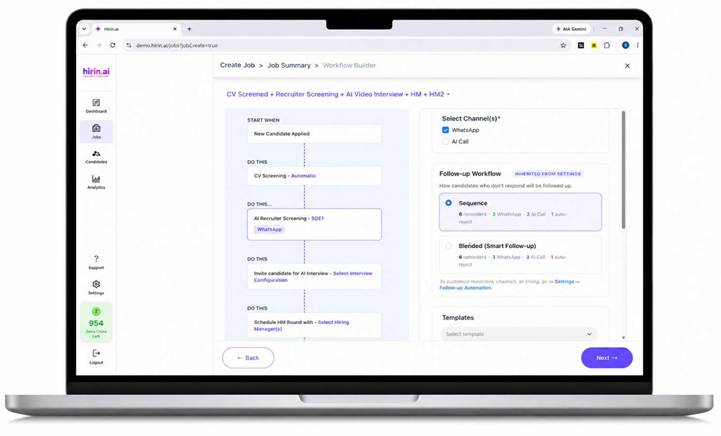
Figure 8: Selecting the Follow-up Workflow mode in the AI Recruiter Screening stage during job creation
Hiring Manager Selection
- Click the step "Schedule HM Round with – Select Hiring Manager(s)".
- A panel on the right shows available Hiring Managers; select one using the radio button.
- Optionally upload a feedback form for the HM to complete after the interview, then click Select.
- The workflow then automatically schedules the HM round with the shortlisted candidate.
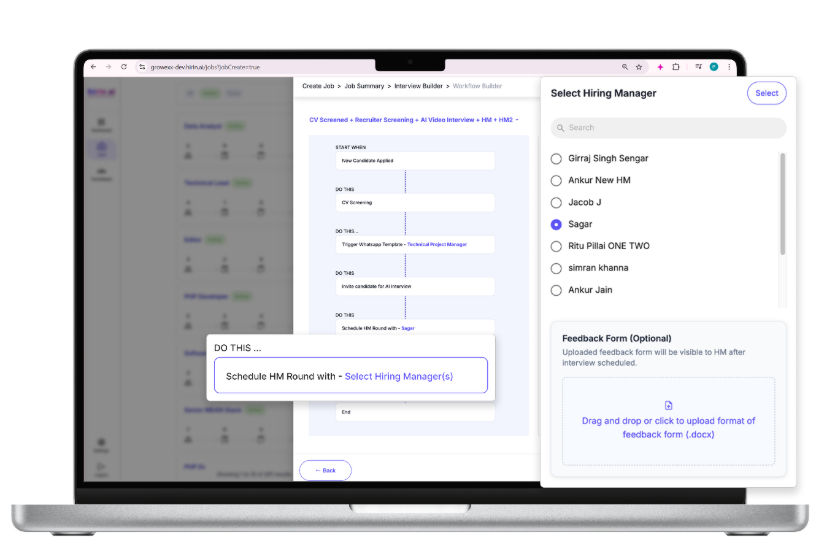
Figure 8: Selecting a Hiring Manager for the round
Was this article helpful?
That’s Great!
Thank you for your feedback
Sorry! We couldn't be helpful
Thank you for your feedback
Feedback sent
We appreciate your effort and will try to fix the article