Step 1: Open the Hirin.ai Login Page
- Go to the Hirin.ai login page.
- You will see the standard login interface where you normally enter your credentials.
- On the login page, locate and click on the Forgot Password option.
- This will redirect you to the password recovery screen.
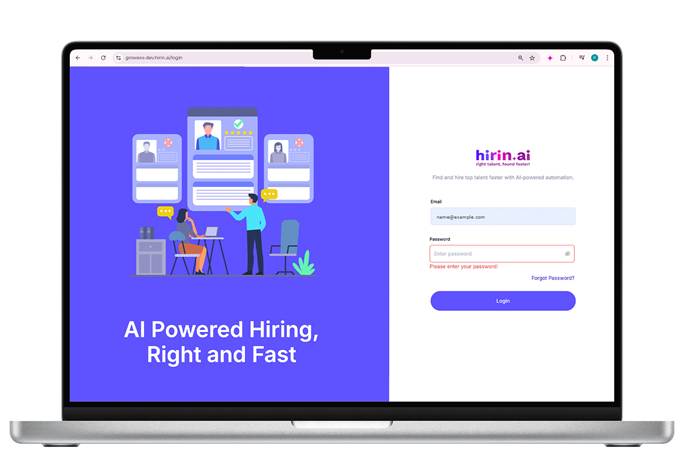
Figure 1: Step 1: Open the Hirin.ai Login Page
Step 2: Enter Your Registered Email ID
- You will be prompted to enter the email address linked to your Hirin.ai account.
- Enter the correct details and proceed.
What you will see:
- A confirmation screen appears with a message “Link Sent.”
- A toast message confirms that if the email exists, a reset link will be sent.
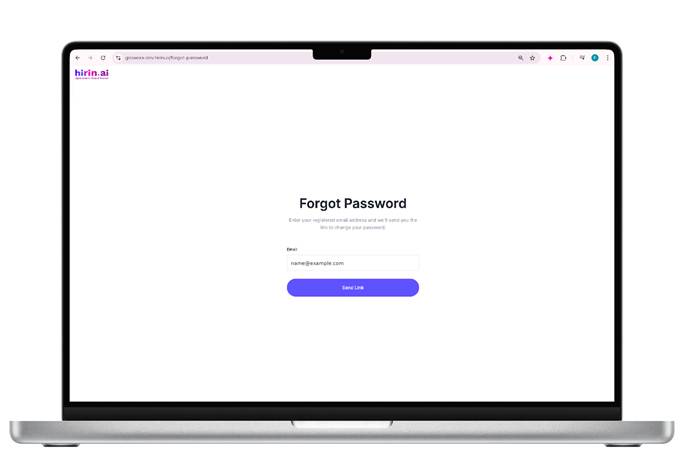
Figure 2: Step 2: Enter Your Registered Email ID
Step 3: Check Your Email
- Open your inbox for the email from info@hirin.ai.
- Subject: “Reset Your Hirin.ai Password”
- Click the “Reset Password” button inside the email.
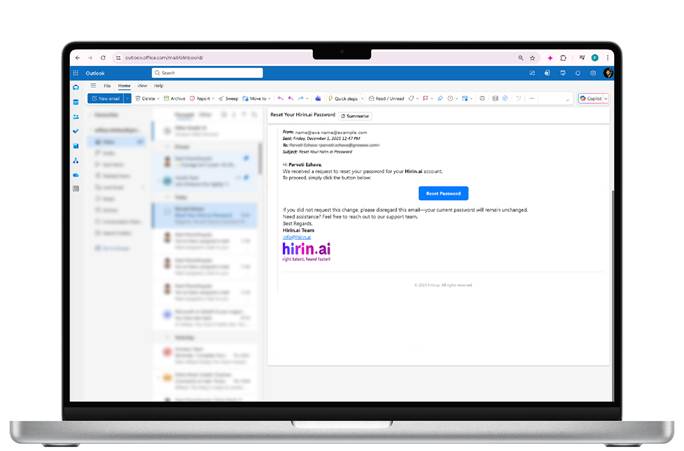
Figure 3: Step 3: Check Your Email
Step 4: Open Reset Password Page
- Clicking the button will redirect you to the New Password screen.
- Enter the new password in the “New Password” field.
- Ensure all password rules are met:
- Minimum 8 characters
- Uppercase letter
- Lowercase letter
- Alphanumeric characters
- Special character
- Re-enter the same password in the Confirm Password field.
- Click Set Password.
- Once successful, you can log in using your new password.
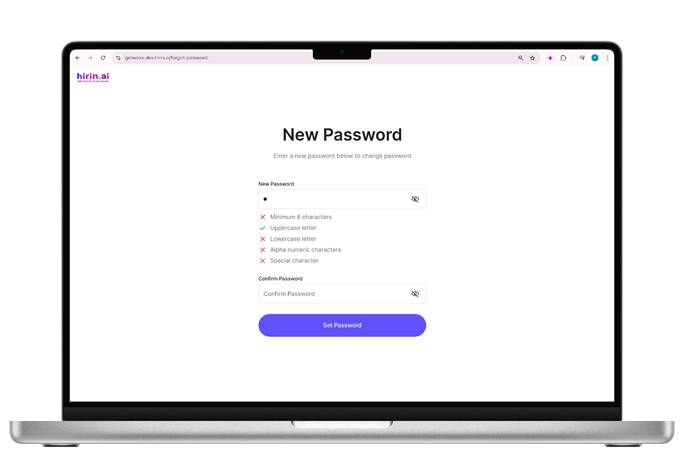
Figure 4: Step 4: Open Reset Password Page
Was this article helpful?
That’s Great!
Thank you for your feedback
Sorry! We couldn't be helpful
Thank you for your feedback
Feedback sent
We appreciate your effort and will try to fix the article