The Client Submission email template controls the email that is sent to your client when candidate profiles are submitted for review. It is available under Settings → Email Templates and can be edited by Admins and Recruiters, so every submission goes out with consistent wording and a consistent candidate table.
Step-by-Step Process
Step 1: Open the Client Submission template
- Go to Settings → Email Templates.
- Locate the Client Submission template in the list and open it for editing.
- The Edit Email Template window opens with the message: Manage the email template used when submitting candidates to clients.
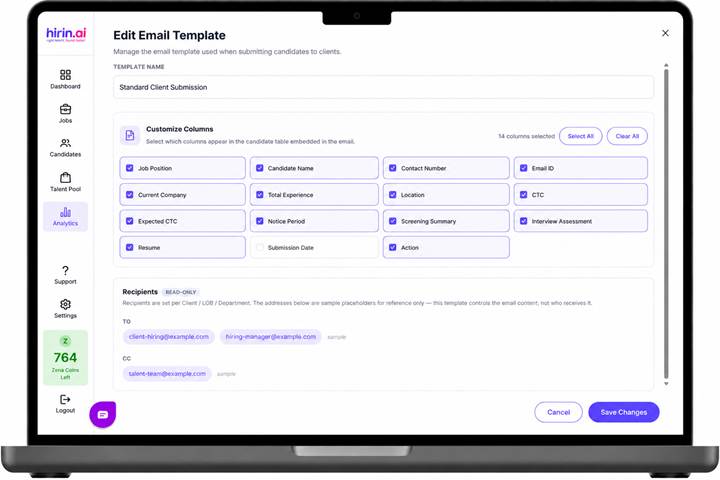
Figure 1: Edit Email Template window for the Client Submission email
Step 2: Edit the template details
- Template Name – identifies the template (for example, Standard Client Submission).
- Edit the subject, the intro text that appears above the candidate table, and the closing text that appears below it.
Step 3: Choose the candidate table columns
- In the Customize Columns section, select which columns appear in the candidate table embedded in the email.
- Available columns include:
- Job Position, Candidate Name, Contact Number and Email ID
- Current Company, Total Experience, Location
- CTC, Expected CTC and Notice Period
- Screening Summary and Interview Assessment
- Resume, Submission Date and Action
- Use Select All or Clear All to change every column at once. The counter shows how many columns are currently selected.
- The live preview updates as you change the selection, so you can see exactly how the client will see the table.
Step 4: Review the recipients
- The Recipients section is read-only in this window. The addresses shown are sample placeholders for reference only.
- Actual To and Cc recipients are configured on the Client Submission stage in the job workflow.
- This template controls the email content, not who receives it.
Step 5: Save the template
- Click Save Changes to store the template, or Cancel to discard your edits.
Good to Know
- The saved template content is used automatically in the Submit to Client flow.
- Column changes made on an individual send do not modify the saved template.
- View Resume in the email opens the candidate's resume in a new tab, using the Hirin Standard Resume format.
- The candidate's email address, mobile number and direct contact details are not shown in the shared resume.
Was this article helpful?
That’s Great!
Thank you for your feedback
Sorry! We couldn't be helpful
Thank you for your feedback
Feedback sent
We appreciate your effort and will try to fix the article