For jobs where Client Submission is configured as Manual, candidates who clear the previous workflow stage move to Client Submission Awaiting so the recruiter can review them before they reach the client. In Auto mode the same submission happens without recruiter action.
Step-by-Step Process
Step 1: Find candidates awaiting submission
- Open the job and go to the candidate list.
- Candidates who have cleared the previous stage appear with the stage Client Submission Awaiting.
- Use the Client Submission stage cards and filters on the job to see these candidates as a group. These cards and filters appear only for jobs whose workflow includes Client Submission.
Step 2: Review the candidate before submitting
- Click the candidate's name to open the Candidate Details page.
- Review the Screening Summary, Workflow Progress, Notes and Resume tabs — for example the CV score, job experience, education and technical skills match.
- Add notes or upload an updated resume if the profile needs to be refreshed before it goes to the client.
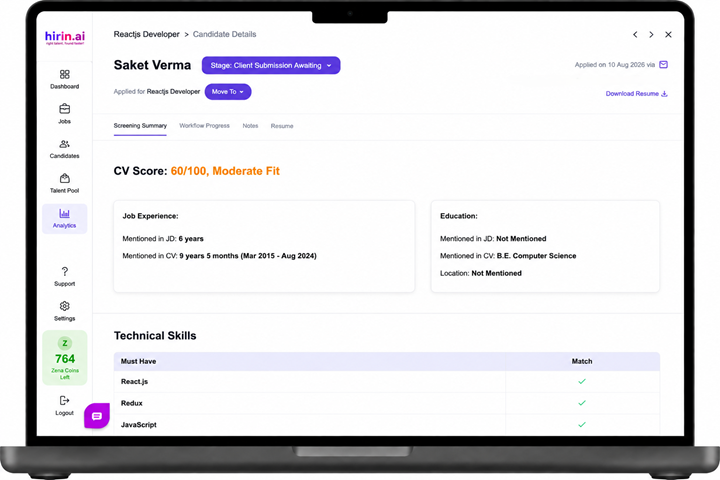
Figure 1: Candidate Details page showing the Client Submission Awaiting stage
Step 3: Submit the candidate to the client
- Click Submit to Client. The submission window opens, showing how many candidates are being sent, the client and the job position.
- Review or edit the TO and Cc recipients for this submission. Configured recipients are pre-filled.
- Check the email preview: the From name, the Subject (for example, Candidate Profile(s) Submitted for Review), the intro text and the candidate table.
- The candidate table shows only the columns selected in the Client Submission Email Template, with View links for the screening summary, interview assessment and resume.
- Click Send & Move to Client Review Pending to complete the submission, or Cancel to close without sending.
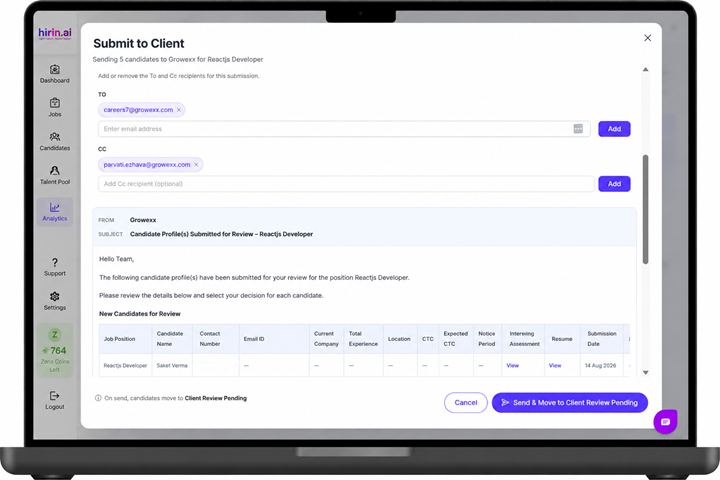
Figure 2: Submit to Client window with recipients, email preview and candidate table
Step 4: Track the client's decision
- After a successful submission the candidate moves to the Review Pending stage.
- The candidate does not move forward until the submission has been completed successfully.
- Record or track the client outcome as Shortlisted for interview or Client Rejection.
Auto Submission
- If the stage is set to Auto Submission, the candidate is submitted automatically after passing Recruiter Screening.
- The same submission email is sent to the configured recipients — no Submit to Client action is needed.
- You can continue to track the client outcome in the same way as manual submissions.
Note: Client Submission stages, cards, filters and submission options appear based on the workflow configured for the job. If you do not see them, check that the Client Submission stage is part of that job's workflow.
Was this article helpful?
That’s Great!
Thank you for your feedback
Sorry! We couldn't be helpful
Thank you for your feedback
Feedback sent
We appreciate your effort and will try to fix the article