When the Client Submission stage is included in a job workflow, you can choose how candidates should reach the client — either the recruiter submits each candidate manually, or Hirin submits candidates automatically as soon as they pass the previous stage. You also set the client notification recipients here.
Step-by-Step Process
Step 1: Open the Workflow Builder for the job
- Go to Create Job → Job Summary → Workflow Builder (for an existing job, open the job and edit its workflow).
- Select or build a workflow that includes the Client Submission stage — for example, CV + RS + Client Submission + Shortlisted.
- The workflow canvas shows the stages in order, from New Candidate Applied through to Shortlisted.
Step 2: Select the Submission Type
- Click the Client Submission stage on the canvas. The configuration panel opens on the right.
- Under Submission Type, choose how candidates move after internal shortlisting:
- Manual Submission – the recruiter reviews and submits each candidate individually. Allows bulk submit, notes and updated resume upload.
- Auto Submission – the system auto-submits candidates as soon as they pass the previous stage. No recruiter action is required.
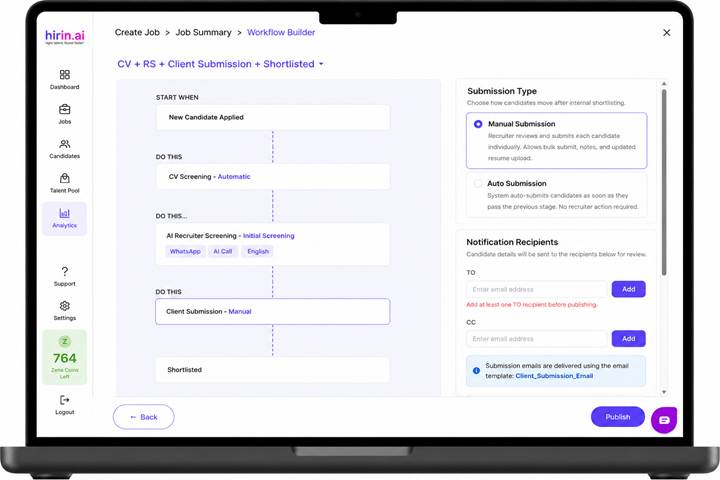
Figure 1: Client Submission stage with Submission Type and Notification Recipients
Step 3: Add the notification recipients
- In the Notification Recipients section, enter an email address under TO and click Add.
- At least one TO recipient is required before the workflow can be published.
- Add CC recipients the same way if other stakeholders should receive a copy.
Step 4: Confirm the email template
- The panel confirms that submission emails are delivered using the Client_Submission_Email template.
- Email content is managed centrally through the Client Submission Email Template under Settings → Email Templates.
Step 5: Publish the workflow
- Click Publish to apply the configuration to the job.
- Use Back if you need to return to the previous step before publishing.
How each option behaves
- In Manual mode, the submission email is triggered when the recruiter submits the candidate using the Submit to Client action.
- In Auto mode, the same submission email is triggered automatically when the candidate passes the previous stage.
Note: To use the Client Submission flow, the Client Submission stage must first be added to the job workflow. Once configured, the related stages, cards, filters and submission options appear based on the selected Client Submission workflow configuration.
Was this article helpful?
That’s Great!
Thank you for your feedback
Sorry! We couldn't be helpful
Thank you for your feedback
Feedback sent
We appreciate your effort and will try to fix the article