Step-by-Step Process
Step 1: Open a candidate
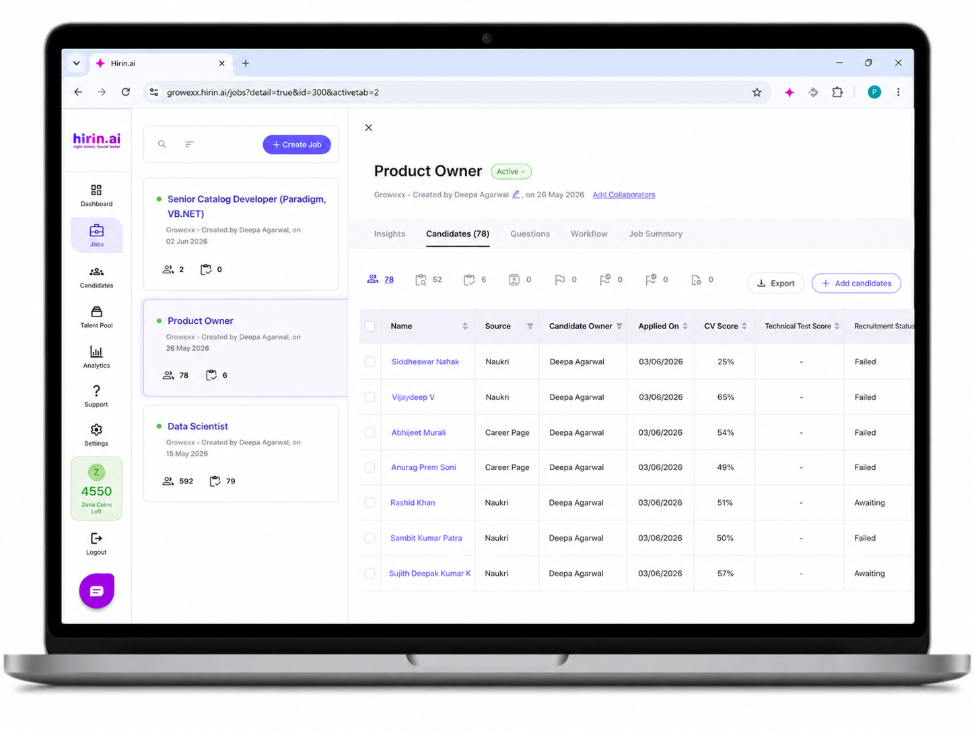
- Open a job (Jobs > select a job) and go to the Candidates tab, or use the global Candidates page.
- Click the candidate's name. The Candidate Details panel opens on the right.
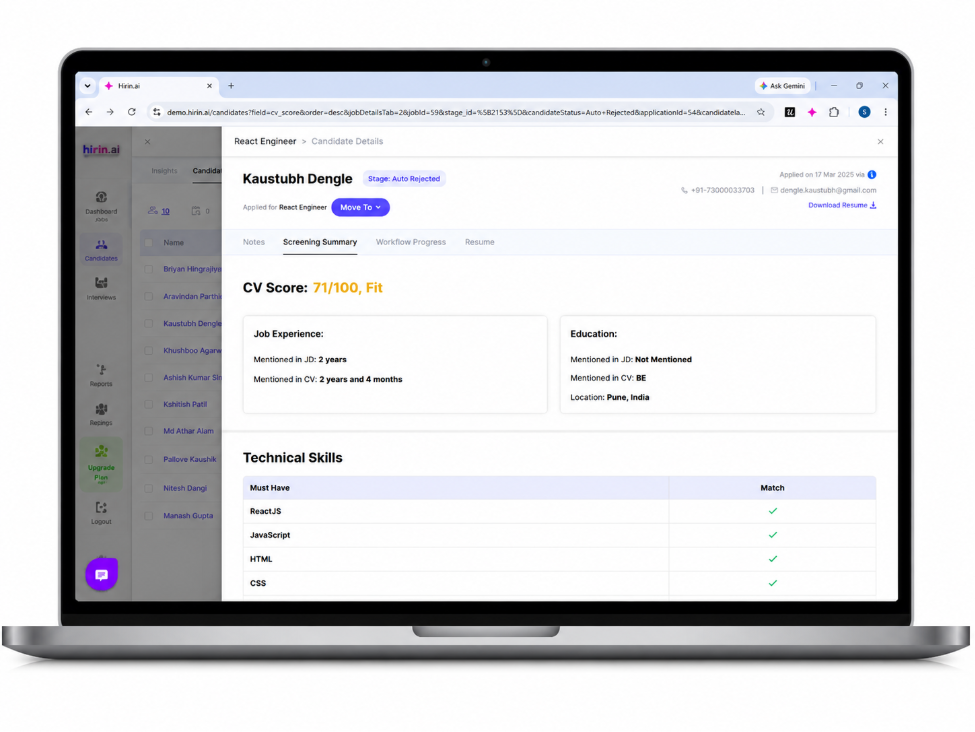
- At the top you will see the candidate's name, current Stage, the role they applied for, and a Move To control.
Step 2: Read the tabs
The panel is organised into tabs. The exact set depends on how far the candidate has progressed:
- Screening Summary – CV Score, Recommendation by Zena (Strengths and Weaknesses), job experience, and WhatsApp screening questions/answers.
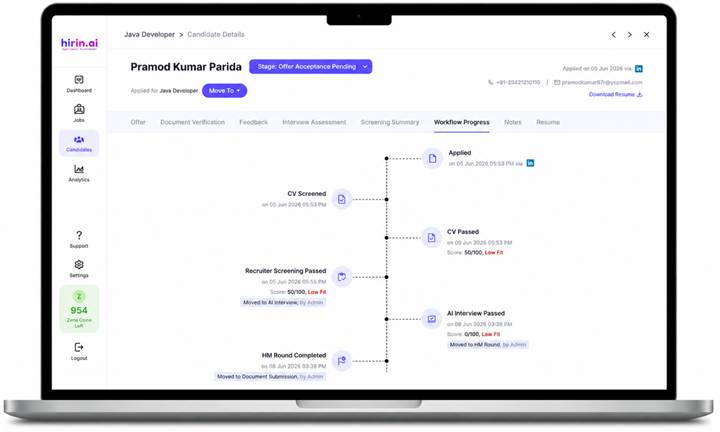
- Workflow Progress – a time-stamped history of every stage, with a View Chat option to read the full WhatsApp conversation between Zena, the candidate, and the hiring manager.
- Interview Assessment – appears after an AI Interview or Technical Assessment; shows overall fitment, category scores, radar charts, skill-wise evaluation, and the option to view answer videos.
- Documents / Document Verification – uploaded documents with Approve, Reject, Request re-upload, Preview, and Download actions.
- Feedback – hiring manager interview feedback and ratings.
- Offer – offer release, revoke, and acceptance status.
- Notes – free-text notes, including mandatory rejection reasons.
- Resume – the parsed resume view
Step 3: Take action
- Use Move To to advance or move the candidate to another stage or job.
- For a rejected candidate, a Reopen action returns them to the stage where they were rejected and sets their status to Reopened.
- Approve/Reject documents from the Documents tab.
- Add notes — a reason is mandatory when rejecting.
Navigating Candidate Profiles
Open a Candidate Profile in a New Browser Tab :
You can open a candidate's profile in a new browser tab to review several candidates at once without losing your place in the list.
- Right-click a candidate row or name and select Open Link in New Tab.
- Or use Ctrl + Click (Windows/Linux) or Cmd + Click (Mac).
Previous & Next Candidate Navigation :
Previous and Next navigation icons are now available in the Candidate Detail page header, so you can move between candidates without returning to the listing.
- Next opens the next candidate from the current candidate list.
- Previous opens the previous candidate from the current candidate list.
Was this article helpful?
That’s Great!
Thank you for your feedback
Sorry! We couldn't be helpful
Thank you for your feedback
Feedback sent
We appreciate your effort and will try to fix the article