How to Import Candidates from a Spreadsheet
Step 1: Open the import option
- Go to the Talent Pool and click Add Candidate.
- In the Add Candidate to Talent Pool panel, choose how you want to add candidates. Select Import from Spreadsheet to upload an Excel or CSV file. (Choose Upload Resumes only when adding candidates from PDF or DOC resumes.)

Figure 1: The Add Candidate to Talent Pool panel with the Upload Resumes and Import from Spreadsheet options
Step 2: Set the source and upload your file
- Select the Source that applies to all candidates in the file (for example, LinkedIn). The source is applied to every candidate in the upload.
- Optionally, click Download sample template to get a pre-formatted file. Columns highlighted in red in the template — Name, Email, and Mobile Number — are mandatory fields.
- Drag and drop your file into the upload area, or click Select File to browse for it.
- Supported formats are .xlsx, .xls, and .csv, up to 10 MB and 10,000 candidate records per import.
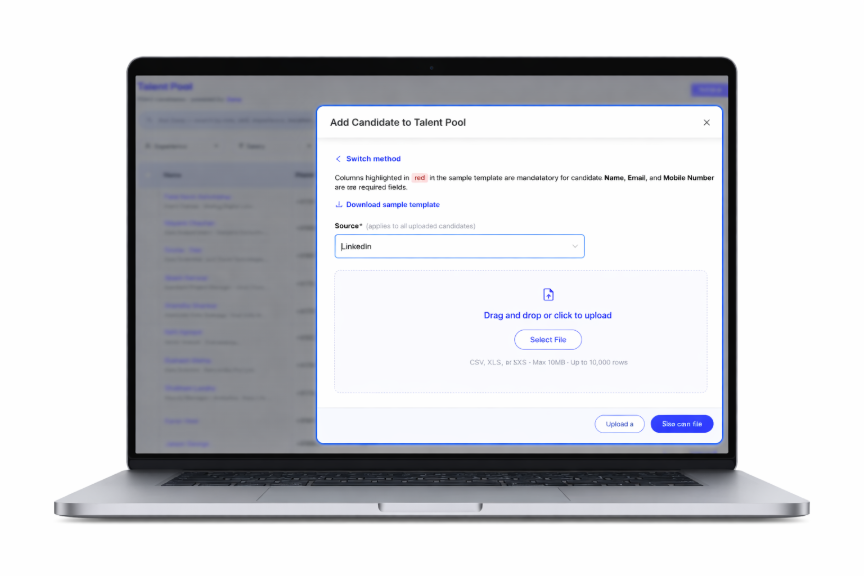
Figure 2: Selecting the candidate Source and uploading the spreadsheet file
Step 3: Review validation and import
- The system automatically detects candidate columns even when the header names vary from the template.
- Candidate data is validated before import, and any rows containing errors are clearly flagged.
- If there are errors, download all validation errors in a separate file, correct the flagged rows, and upload the file again.
- Import all valid candidates into the Talent Pool in a single action.
Was this article helpful?
That’s Great!
Thank you for your feedback
Sorry! We couldn't be helpful
Thank you for your feedback
Feedback sent
We appreciate your effort and will try to fix the article