How to Add Candidates to Jobs
Step 1: Select candidates and start the flow
- In the Talent Pool, select one or multiple candidates using the checkboxes.
- Click + Add to Job to start the bulk outreach flow.
Step 2: Confirm the invite and select jobs
- The Add to Job panel confirms how many candidates you are adding and that each will receive a consent invite via WhatsApp. Candidates are added to the job only after they accept.
- Under Select Jobs, pick one or more open jobs. Each selected candidate gets a separate WhatsApp invite per role and can accept only one role at a time.
- Click Send Invite to send the WhatsApp invitations.
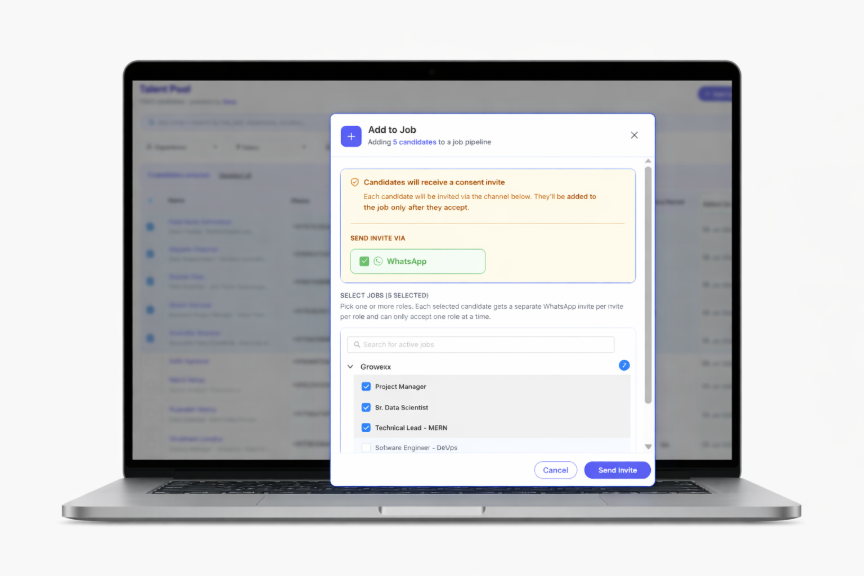
Figure 1: The Add to Job panel showing the WhatsApp consent invite and job selection
Step 3: Candidate consent and CV collection
- Each candidate can view the job details and choose to apply, ensuring consent before they are added to the job.
- Once a candidate gives consent, the system requests a CV based on the tenant's configured CV collection setting.
- Always request an updated CV – the candidate is asked to upload a CV even when one already exists.
- Request a CV only when missing – the candidate is asked to upload a CV only when no CV is available in the system.
Was this article helpful?
That’s Great!
Thank you for your feedback
Sorry! We couldn't be helpful
Thank you for your feedback
Feedback sent
We appreciate your effort and will try to fix the article