Step-by-Step Process
Step 1: Open the candidate’s Resume tab
- Open the candidate from the Jobs > Candidates list or the global Candidates page.
- In the Candidate Details panel, select the Resume tab.
Step 2: Upload the updated resume
- Click Upload / Replace Resume and select the new file from your device.
- The new resume replaces the existing one on the candidate’s profile.
Step 3: Choose whether to re-screen
- When prompted, select Re-run CV Screening to evaluate the candidate against the updated resume, or skip to only replace the file.
- If you choose to re-screen, 1 Zena Coin is deducted once the screening completes successfully.
Step 4: Review the updated results
- The CV Score and Screening Summary refresh to reflect the latest resume.
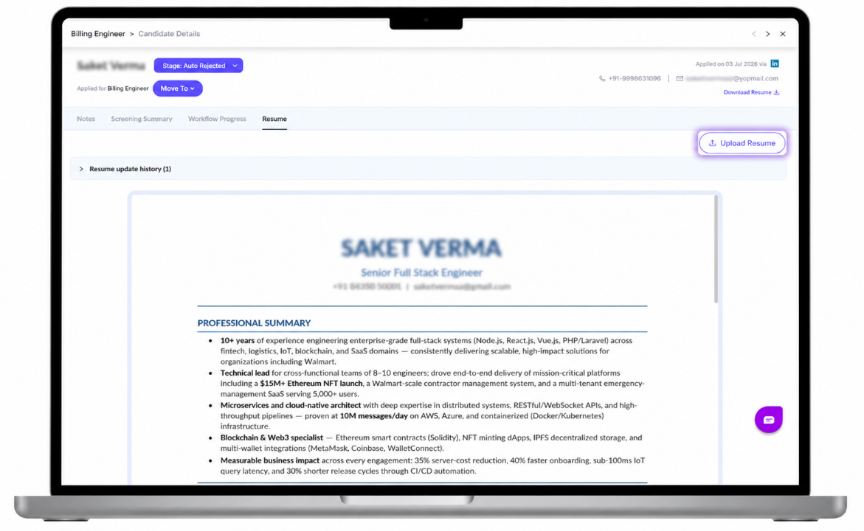
Figure 1: Updating a candidate resume and choosing optional CV re-screening from the Resume tab.
Things to Remember
- Re-screening is always optional and is only performed when you explicitly select it.
- No Zena Coin is charged if you replace the resume without re-screening.
Was this article helpful?
That’s Great!
Thank you for your feedback
Sorry! We couldn't be helpful
Thank you for your feedback
Feedback sent
We appreciate your effort and will try to fix the article