Recruiters can now add notes directly from the Candidate Details -> Notes tab to keep a centralized, shared history of every candidate interaction. You can also edit existing notes inline, without navigating to a separate form. Each note can be shared with everyone who can access the candidate or kept private, and exports and client submissions include only shared notes.
Key Highlights
- A new Add Note action is available in the Notes tab.
- Record observations from calls, WhatsApp conversations, emails, interviews, or other interactions.
- Newly added notes appear at the top of the notes feed.
- Shared notes are visible to team members, improving collaboration and candidate context.
- Existing notes can be edited inline by the recruiter who created them, right from the Candidate Details page.
- Changes are saved instantly, and the edit history is preserved.
- Choose Share or Keep Private for every note, with the option to change it later.
- Only shared notes are included in Exports and Client Submissions, so private comments remain internal.
- Exports now include an Include Notes option, with each shared note appearing in a separate column (Notes 1, Notes 2, etc.).
- Rejecting a candidate now requires a rejection reason, which can also be marked as shared or private.
Step-by-Step Process
Step 1: Open the Notes tab
- Open the candidate and, in the Candidate Details panel, select the Notes tab.
Step 2: Add a note
- Click Add Note.
- Type your observation, for example a summary of a call or WhatsApp conversation.
Step 3: Choose Share or Keep Private
- In the Add Note window, use the Share with everyone who can access this candidate option to decide who can see the note.
- Keep the option selected to share the note. Shared notes are visible across the candidate’s profile.
- Clear the option to keep the note private.
- Click Submit to save the note.
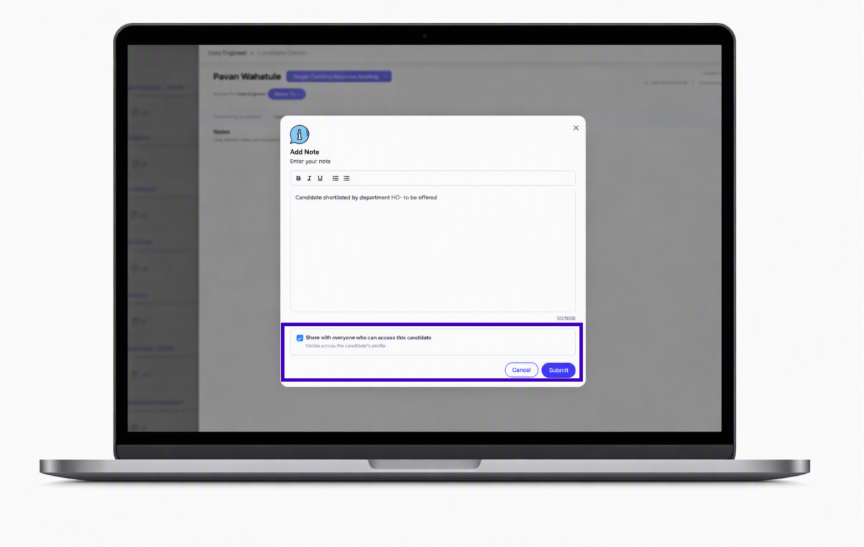
Figure 1: Choosing whether to share a note or keep it private in the Add Note window.
Step 4: Review the notes feed
- The new note appears at the top of the feed. Shared notes are visible to other team members working on the candidate.
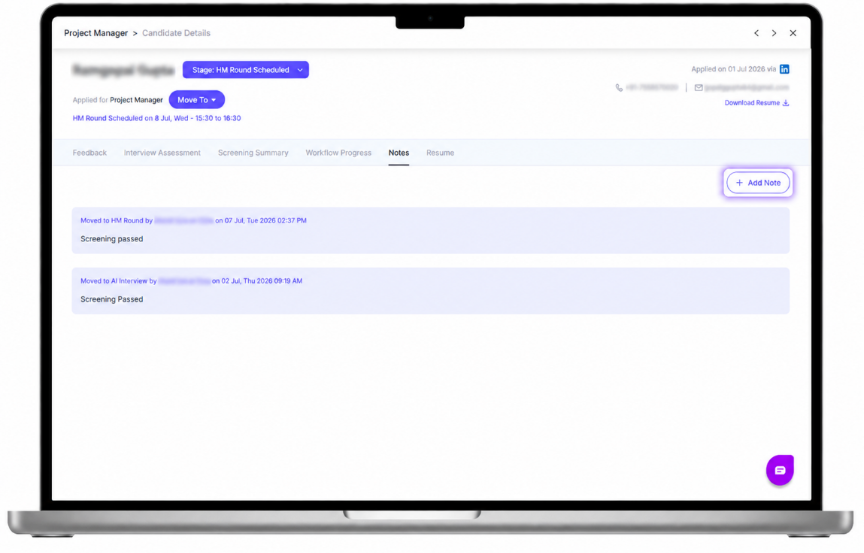
Figure 2: Adding a note from the Candidate Details Notes tab.
Step 5: Edit a note inline
- From the main Candidate Details view, open the Notes tab and find the note you want to update.
- Edit the note directly inline. There is no need to open a separate form.
- Your changes are saved instantly.
- The note's edit history is preserved for future reference.
- You can also change a note between shared and private later.
Step 6: Give a reason when rejecting a candidate
- When you reject a candidate, you now need to enter a rejection reason.
- You can mark the rejection reason as shared or private, just like any other note.
Things to Remember
- Notes create a shared record, so keep them factual and relevant to the hiring process.
- Edit history is preserved, so earlier changes to a note stay on record for future reference.
- Only shared notes are included in Exports and Client Submissions. Private notes always stay internal.
- Use the Include Notes option when exporting to add shared notes as extra columns (Notes 1, Notes 2, etc.).
Was this article helpful?
That’s Great!
Thank you for your feedback
Sorry! We couldn't be helpful
Thank you for your feedback
Feedback sent
We appreciate your effort and will try to fix the article